Spreadsheets & Data Management
Xenbox includes a built-in spreadsheet system for storing and managing structured data locally. It is optimized for handling large datasets and integrates directly with automation workflows.
Overview
With spreadsheets, you can:
- Store and manage structured data locally
- Create datasets manually or via automation
- Extract and save data from websites using AI
- Export data in multiple formats
All spreadsheet data is stored locally on your device. It is not synced across devices, so you will not see the same data on another computer.
1. Creating a Spreadsheet
Step 1: Open Spreadsheet Section
Navigate to the Spreadsheet section from the left sidebar.
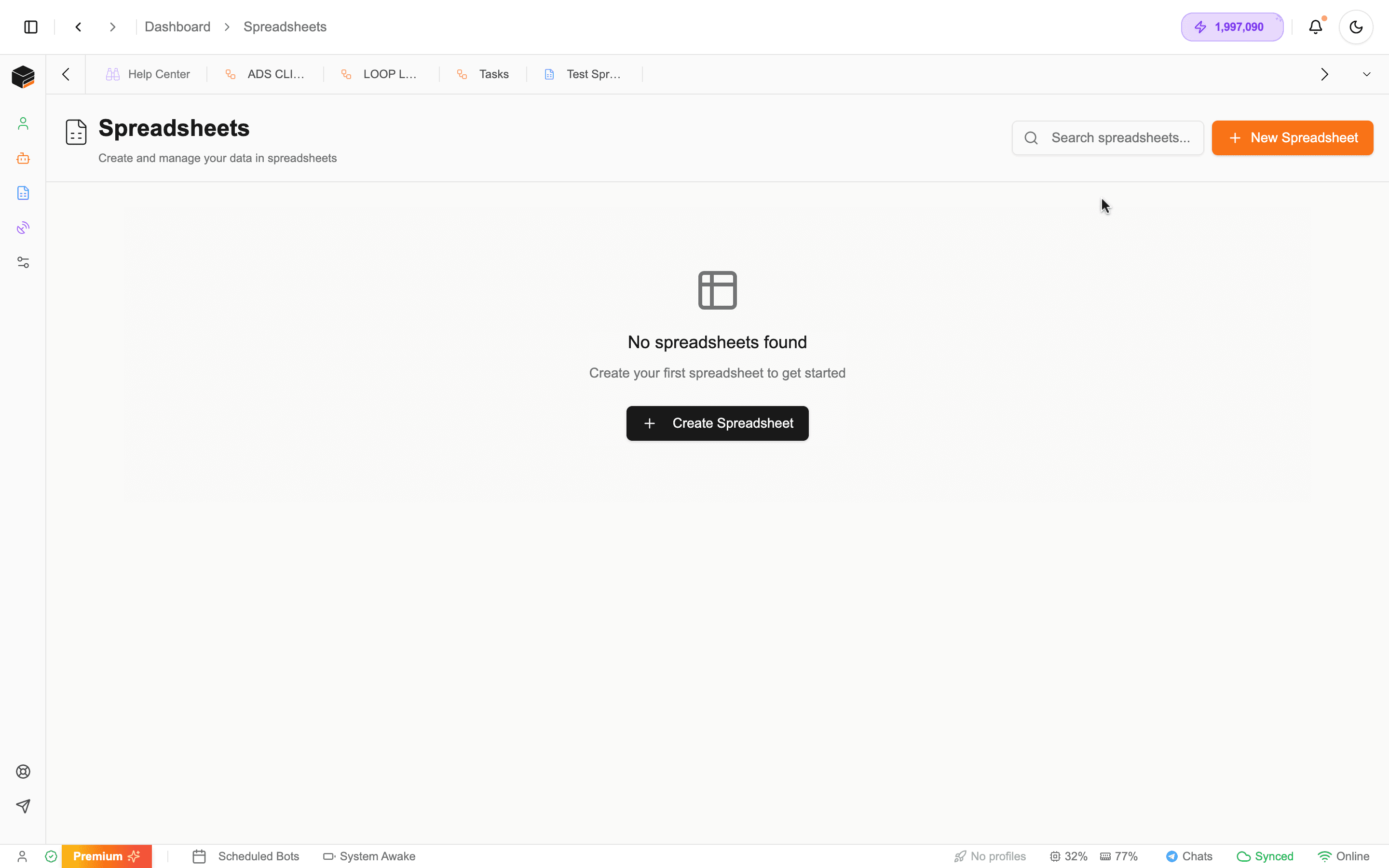
Step 2: Create New Spreadsheet
Click Create Spreadsheet.
Step 3: Add Details
Provide:
- Name
- Description
Step 4: Configure Columns
You can:
- Use default columns
- Or define custom columns to structure your data
Custom columns help enforce structure and ensure your data is stored consistently.
2. Managing Spreadsheet Data
Once created, you can view and manage your data.
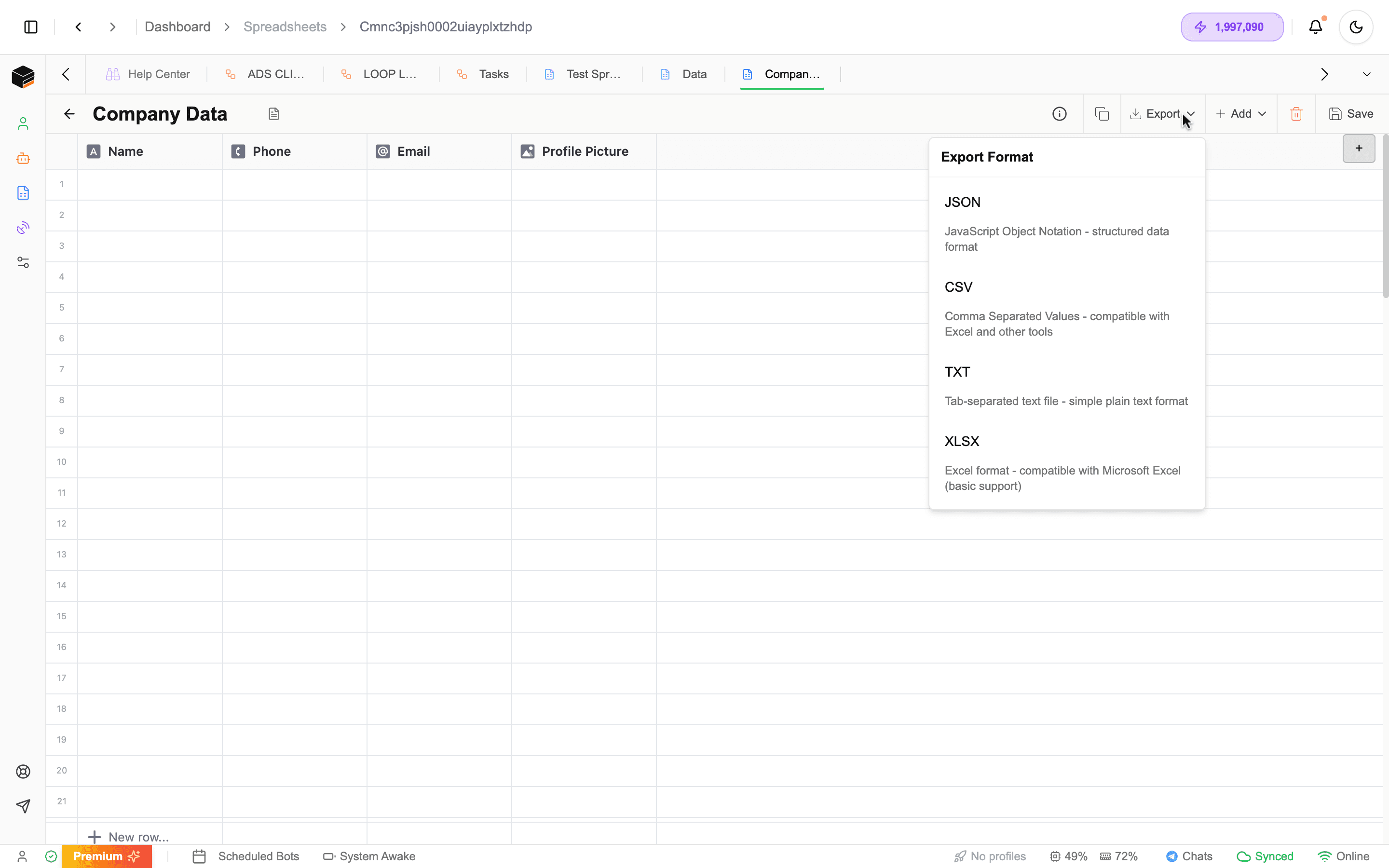
- Add or edit rows manually
- Organize structured data
- Prepare datasets for automation
3. Column Configuration
Columns define how your data is structured.
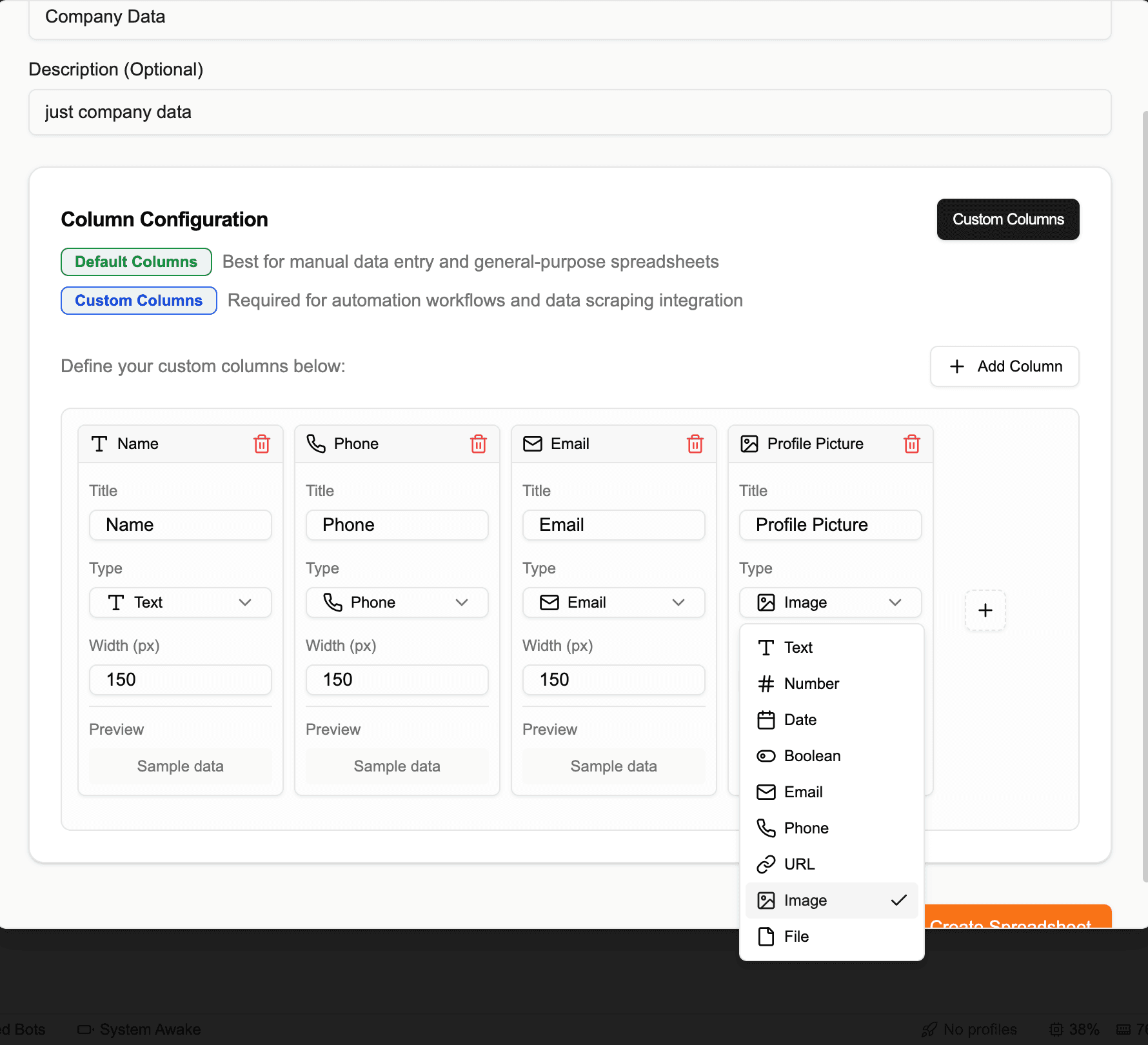
Supported Column Types
- Text
- Number
- Date
- Boolean
- Phone Number
- URL
- Image
- File
Column names must match the structure of incoming data from automation tasks, especially when using AI-generated outputs.
4. Using Spreadsheets in Automation
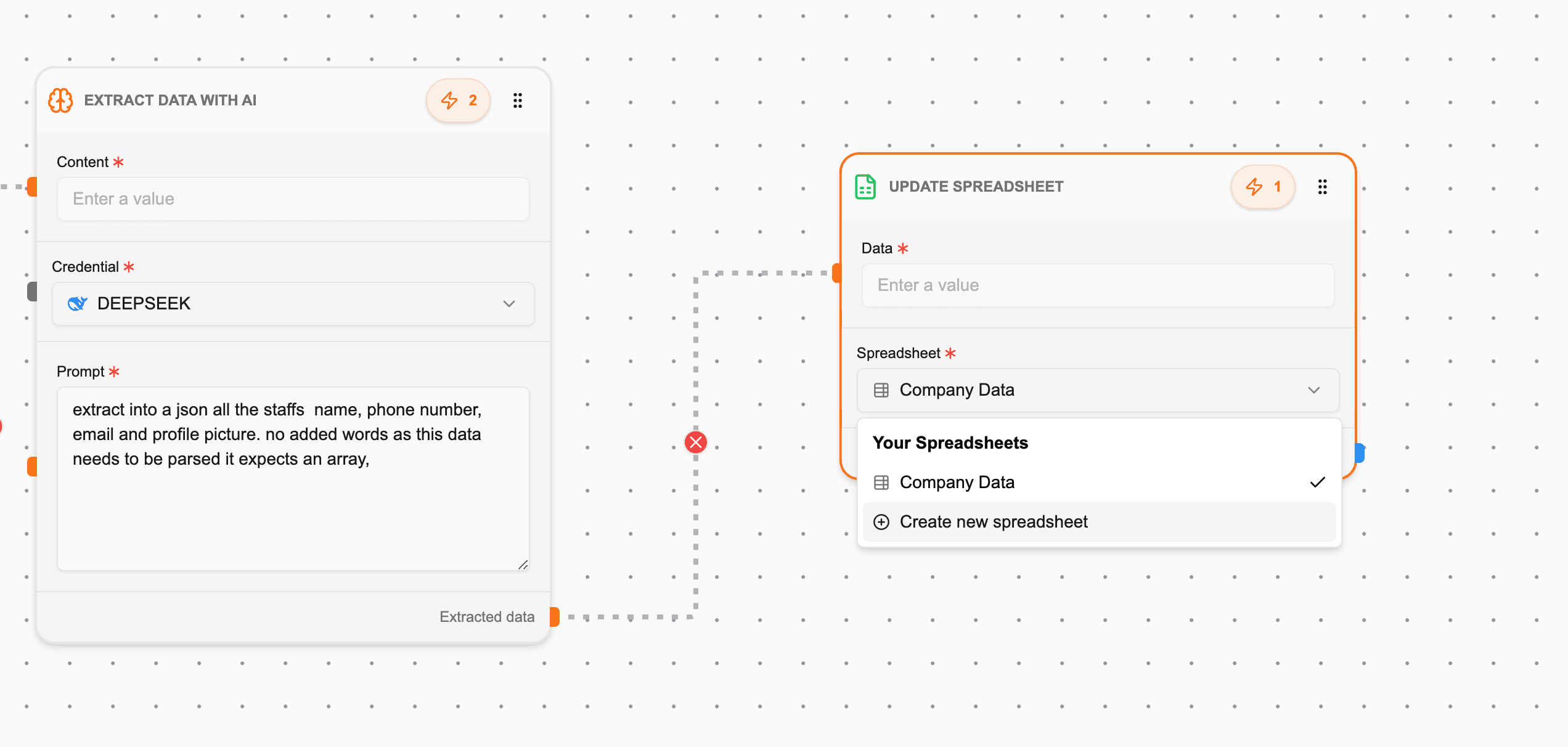
Workflows can automatically create and update spreadsheets using the Update Spreadsheet Task.
How It Works
- The task expects structured JSON data (array of objects)
- Typically receives input from:
- Extract Data with AI
- Modify Data with AI
Example AI Prompt
Extract into a JSON array all staff names, phone numbers, emails, and profile pictures. No extra words.Next Steps: