Proxy Management & Usage
Proxies allow you to route your automation traffic through different IP addresses. In Xenbox, you can manage proxies centrally and use them across profiles and workflows.
Overview
With the Proxy Manager, you can:
- Add single or bulk proxies
- Organize proxies by type and category
- Use proxies in profiles and automation workflows
- Rotate proxies dynamically during execution
1. Accessing the Proxy Manager
To manage proxies:
- Navigate to the Proxy Manager from the sidebar
- From here, you can add, edit, and organize your proxies
2. Adding a Single Proxy
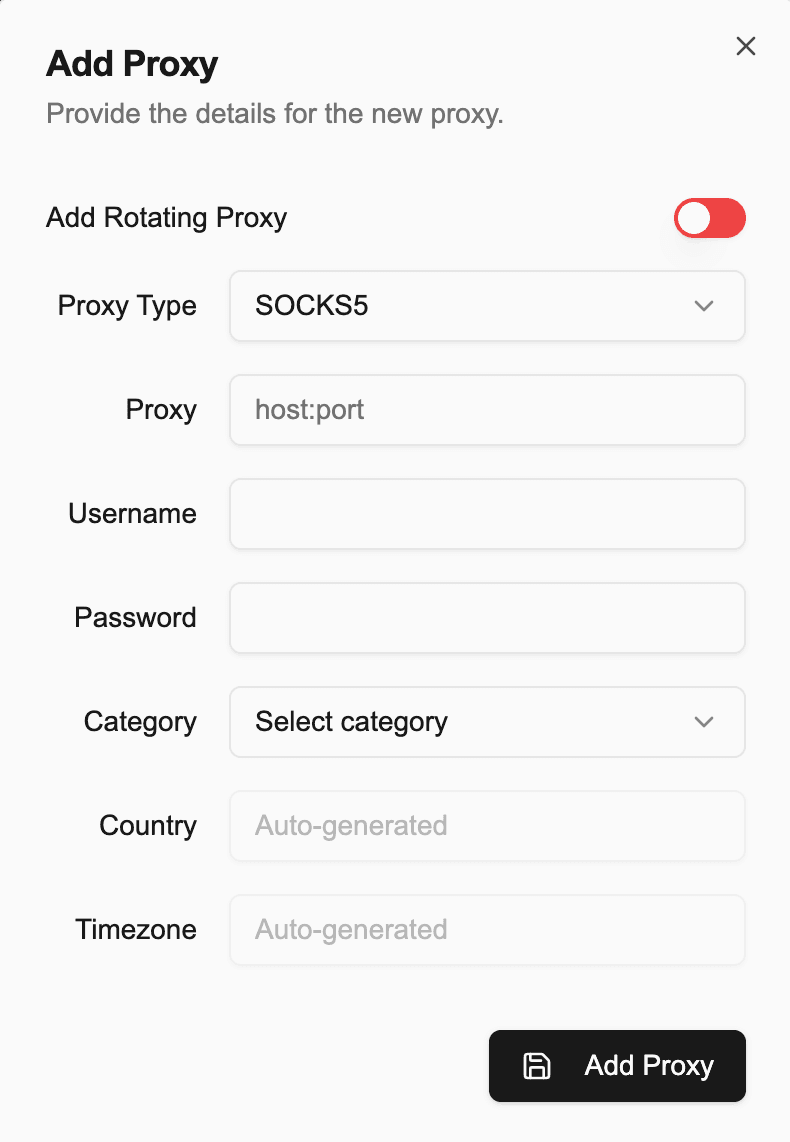
Step 1: Click Add Proxy
Open the proxy manager and click Add Proxy.
Step 2: Fill Proxy Details
Provide the required information:
- Proxy Type
- Proxy (IP:Port)
- Username (optional)
- Password (optional)
- Category
- Residential
- Datacenter
- Mobile
Step 3: Optional Fields
- Country – often auto-detected
- Timezone – usually auto-generated
If you’re using a free proxy, authentication (username/password) may not be required.
3. Adding Bulk Proxies
For large datasets, use the bulk import feature.
Step 1: Open Bulk Actions
Go to the Bulk Actions section in the Proxy Manager.
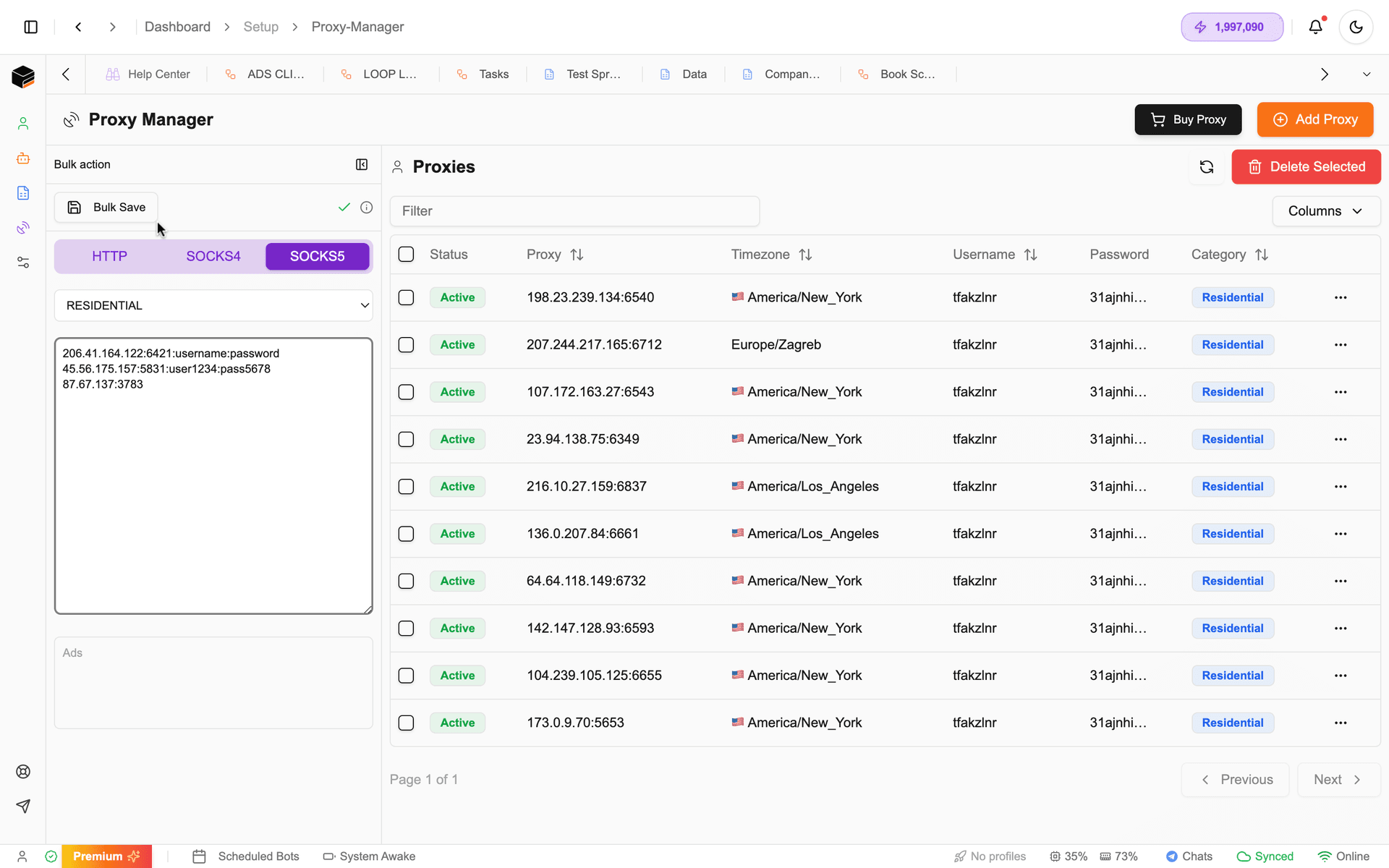
Step 2: Paste Proxies
Paste your proxies into the input field.
Step 3: Follow Format
Each proxy must be on a new line using this format:
IP:PORT:USERNAME:PASSWORD
- No commas
- One proxy per line
Step 4: Save
Click Bulk Save to import all proxies.
Ensure correct formatting. Invalid formats may cause proxies to fail or not import properly.
Automatic Detection
When bulk importing:
- Location (Country) is auto-detected
- Timezone is auto-generated
You can optionally update proxy status after import.
4. Using Proxies
Proxies can be used in two main areas:
Profiles
- Assign proxies to browser profiles
- Useful for account isolation and management
Automation Workflows
- Use proxies directly within tasks
- Ideal for scraping, monitoring, or multi-account workflows
5. Using Proxies in Automation
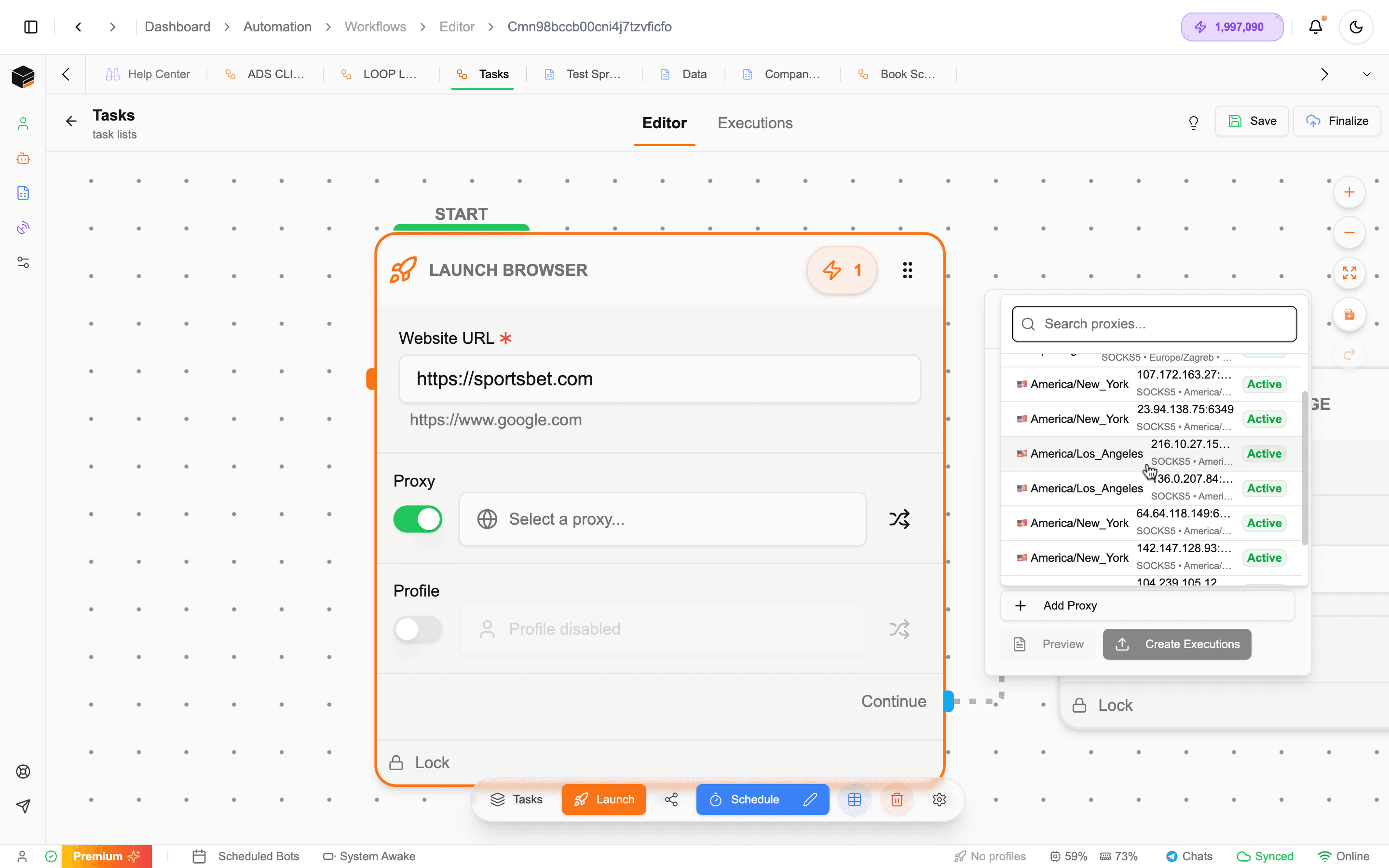
You can configure proxies in the Launch Browser Task.
Steps
- Enable Use Proxy in the task
- Select a proxy group or list
- Apply to your workflow execution
6. Proxy Rotation (Dynamic Usage)
To distribute requests and avoid detection, Xenbox supports proxy rotation.
Enabling Rotation
- Enable Schedule Mode or Dynamic Input
- Add multiple proxies to the workflow
Behavior
- Proxies are used sequentially or shuffled
- Each execution uses a different proxy
Shuffle Option
- Randomizes proxy usage
- Helps distribute load evenly
- Reduces detection risk
Proxy rotation is especially useful for scraping and high-frequency automation tasks.
Best Practices
Reliability
- Use high-quality proxies (residential or mobile for better success rates)
- Regularly test proxy health
Organization
- Group proxies by category or use case
- Label proxies clearly
Automation
- Always use rotation for large-scale workflows
- Avoid reusing the same proxy repeatedly
Security
- Avoid exposing proxy credentials
- Use authenticated proxies when possible
Summary
Xenbox provides a flexible proxy management system:
✅ Add single or bulk proxies
✅ Automatically detect location and timezone
✅ Use proxies in profiles and automation
✅ Rotate proxies dynamically during execution
✅ Improve anonymity and reliability
Next Steps: