Scheduling Workflows & Dynamic Inputs
Supercharge your bots by enabling them to run multiple times automatically. With scheduling and dynamic inputs, you can automate repetitive tasks, manage multiple customer records, and customize execution parameters on the fly.
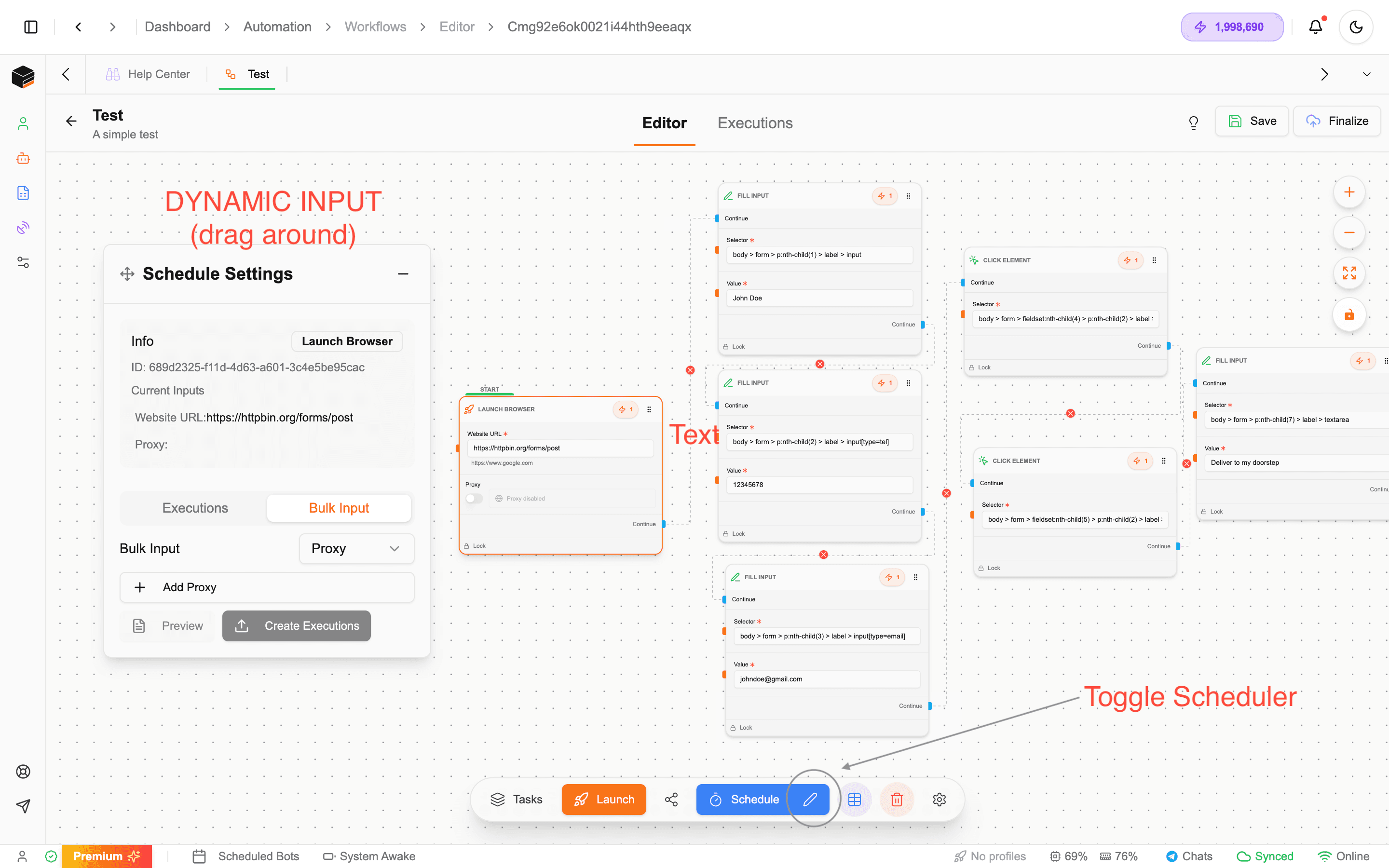
Overview
By default, bots run once and then stop. The scheduler feature allows you to:
- Run bots automatically at regular intervals
- Execute the same workflow multiple times with different input values
- Manage execution limits to control credit usage
- Pause, modify, or delete scheduled tasks anytime
The scheduler transforms single-run bots into powerful automation engines that can handle hundreds of executions with customized inputs.
1. Setting Up a Schedule
Step 1: Access the Scheduler
After creating and testing your bot workflow, click the Schedule button in the bot interface.
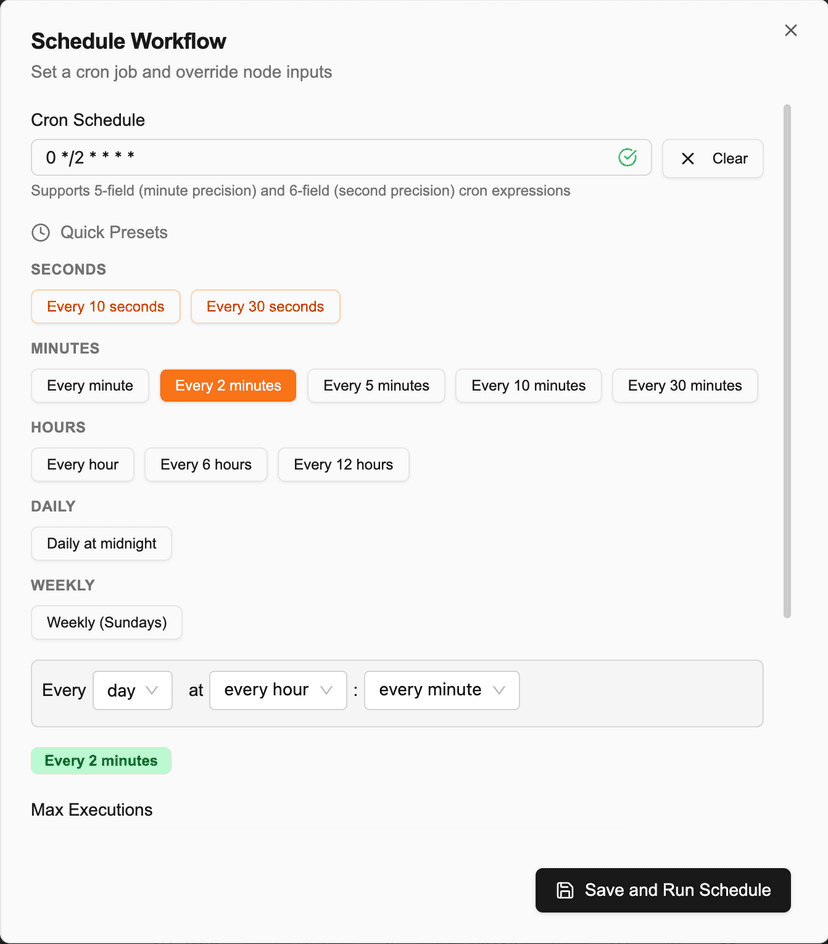
Step 2: Choose Your Interval
Select how often the bot should run:
- Every 10 seconds - For rapid testing or high-frequency tasks
- Every 30 seconds - Quick turnaround automation
- Every few minutes - Standard automation intervals
- Hourly - Periodic data collection or monitoring
- Weekly, Monthly, or Yearly - Long-term recurring tasks
Choose intervals carefully to avoid unnecessary credit consumption. Start with longer intervals for testing.
Step 3: Set Execution Limits
Configure the maximum number of executions:
- Set a specific number (e.g., 10) to run exactly that many times
- Set to zero (0) for unlimited runs until manually stopped
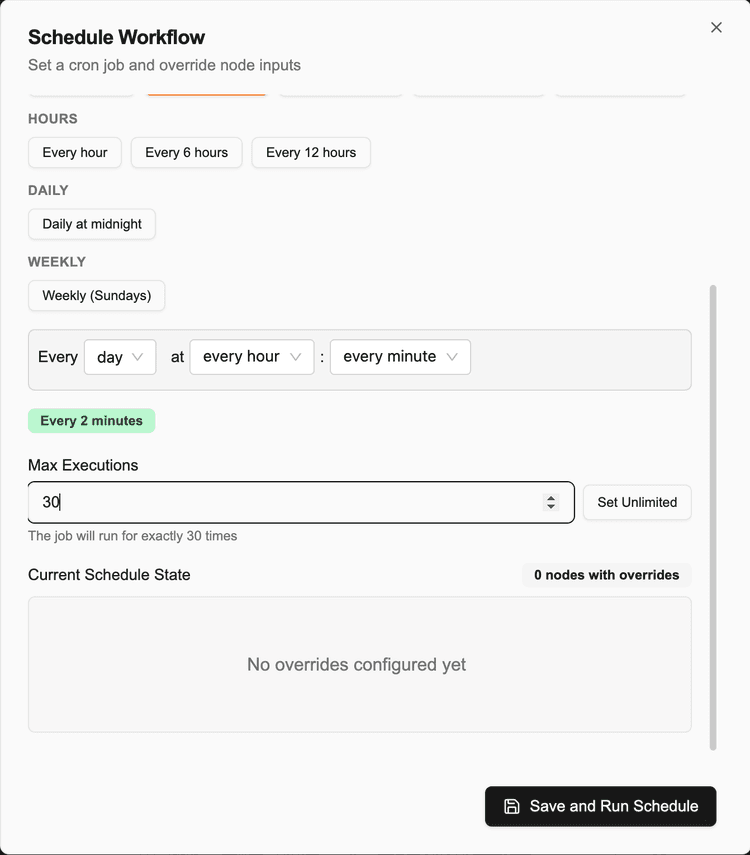
Example: If you set the limit to 10, the bot will execute exactly 10 times and then automatically stop.
Step 4: Save and Run
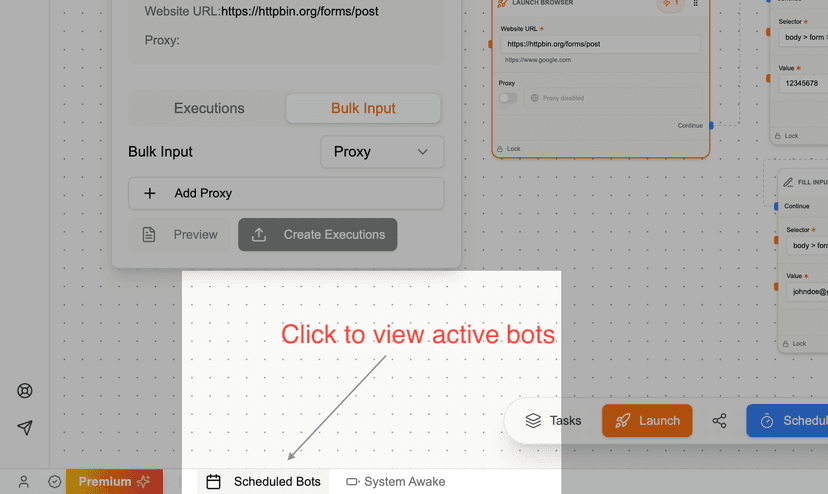
Click Save and Run to activate the schedule. Your bot will now appear in the Scheduled Bots list with the next runtime displayed.
2. Managing Scheduled Bots
Viewing Active Schedules
All scheduled bots are listed in the Scheduled Bots section, showing:
- Bot name
- Schedule interval
- Next execution time
- Status (running/paused)
Pausing or Stopping
To temporarily halt or permanently remove a schedule:
Pause
- Navigate to Scheduled Bots
- Click Pause next to the bot
- The bot will stop running but retain all settings
- Click Resume to restart at any time
Delete
- Navigate to Scheduled Bots
- Click Delete next to the bot
- Confirm deletion in the prompt
- This permanently removes the schedule (the bot itself remains intact)
Pausing is useful for temporary stops, while deletion is final. Your bot workflow is never deleted—only the schedule.
3. Dynamic Inputs
Dynamic inputs allow you to customize each execution with different values. Instead of running the same workflow with identical data, you can provide unique inputs for every run.
Use Cases
Dynamic inputs are perfect for:
- Form submissions - Different customer names, emails, phone numbers per execution
- Multi-account management - Run the same task across different user accounts
- Data collection - Scrape data with different search queries or parameters
- Proxy rotation - Assign unique proxies for each execution
- Testing scenarios - Validate workflows with various input combinations
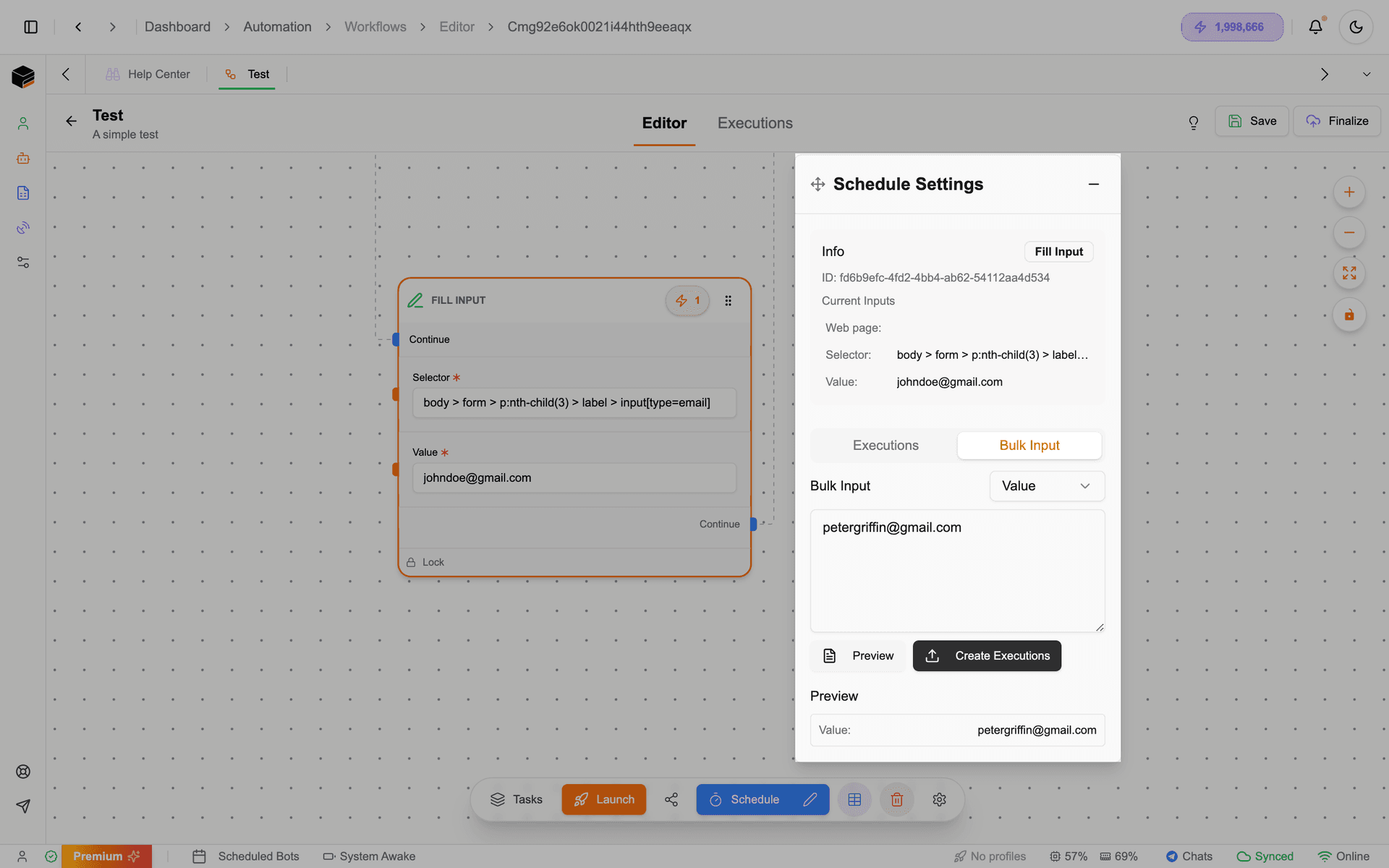
Simply click preview then Add to Execution to create a new execution with the different inputs. You can actually simply just create a new execution using the spreadsheet for simplicity. It is actually only better for adding special inputs like proxies etc.
4. Using the Spreadsheet Interface
The spreadsheet interface is your command center for managing multiple executions with custom inputs.
Step 1: Open the Spreadsheet
From the bot editor, open the Dynamic Input section (labeled “Schedule Settings”). The spreadsheet displays all input fields from your workflow.
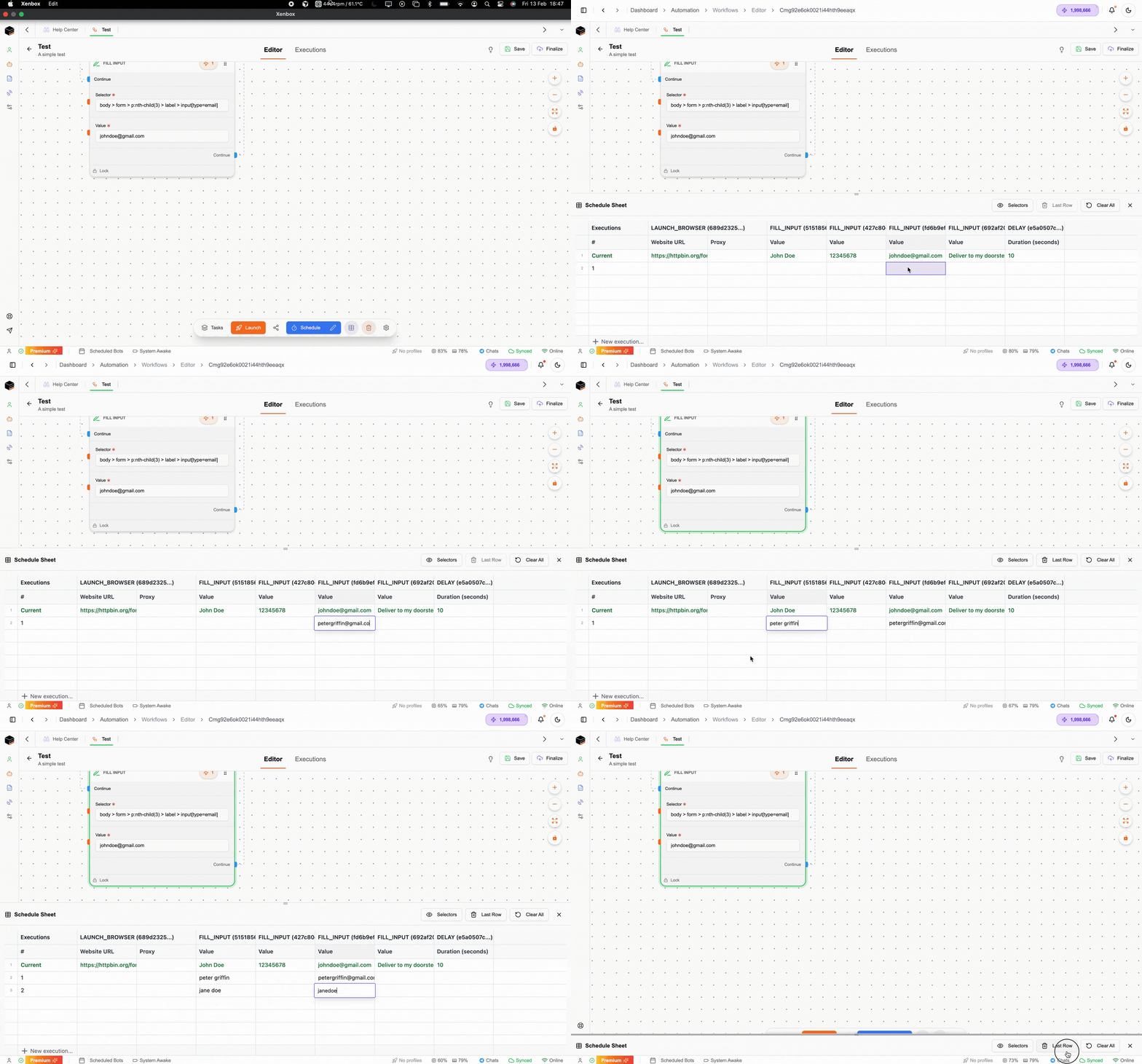
Step 2: Add Executions
Each row in the spreadsheet represents one execution. Fill in values for each input field:
Example: For a pizza order form bot
- Row 1: Peter Griffin, (555) 123-4567, [email protected], Large, Pepperoni, “Leave at door”
- Row 2: Jane Smith, (555) 987-6543, [email protected], Medium, Vegetarian, “Ring doorbell”
- Row 3: Charles James, [empty], [empty], Small, Cheese, “Call on arrival”
Step 3: Identify Changes
Modified inputs are highlighted in green, making it easy to track what’s been customized for each execution.
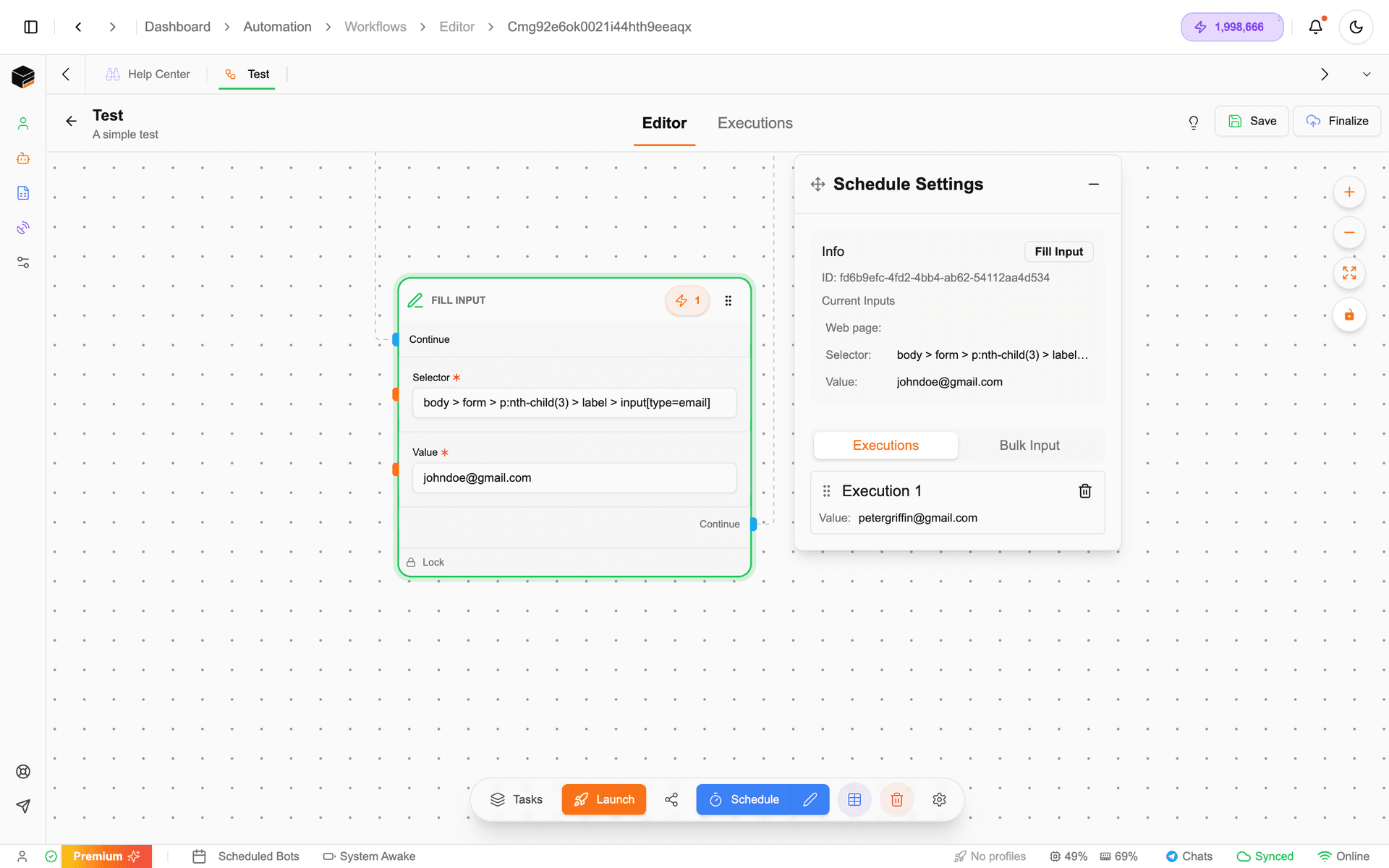
Step 4: Close and Review
After entering all values, close the spreadsheet. Your executions are now configured and ready to run.
Fallback Behavior: If a value is missing in an execution, the bot automatically uses the default value from the original workflow editor (e.g., “John Doe”).
5. Reordering Executions
You can change the execution sequence by reordering rows in the dynamic input section.
Step 1: Lock Nodes Together
Before reordering, lock the tasks/nodes for the execution you want to move. This ensures all input values stay together as a unit.
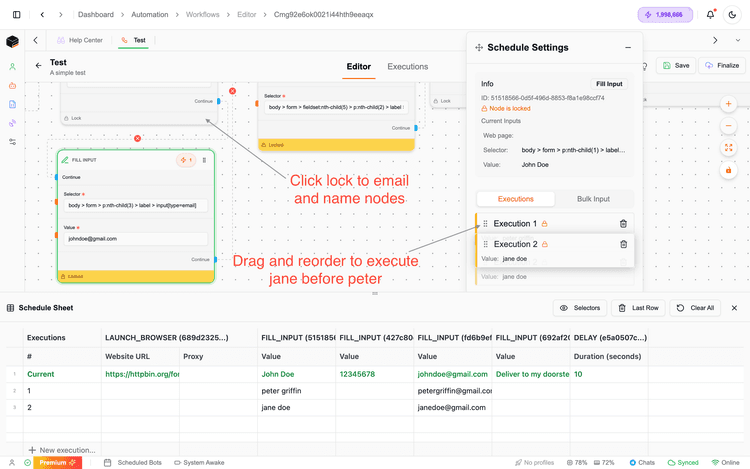
Step 2: Drag to Reorder
Click and drag the locked execution to its new position in the sequence.
Example: To run Jane’s order before Peter’s, lock Jane’s tasks and drag them above Peter’s.
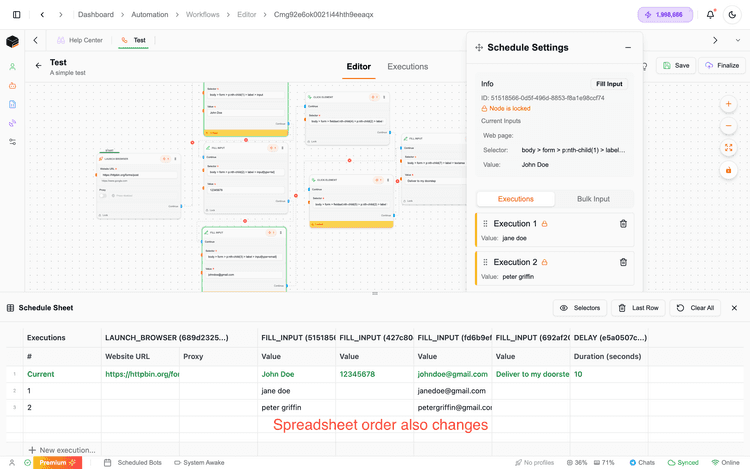
Step 3: Verify in Spreadsheet
Open the spreadsheet to confirm the order has been updated correctly.
Always lock nodes before reordering! This guarantees consistency across all input fields and prevents data mismatches.
6. Advanced Dynamic Input Features
Multi-Account Automation
Run the same workflow across different user accounts by specifying unique login credentials for each execution.
Example:
- Execution 1: Account A credentials
- Execution 2: Account B credentials
- Execution 3: Account C credentials
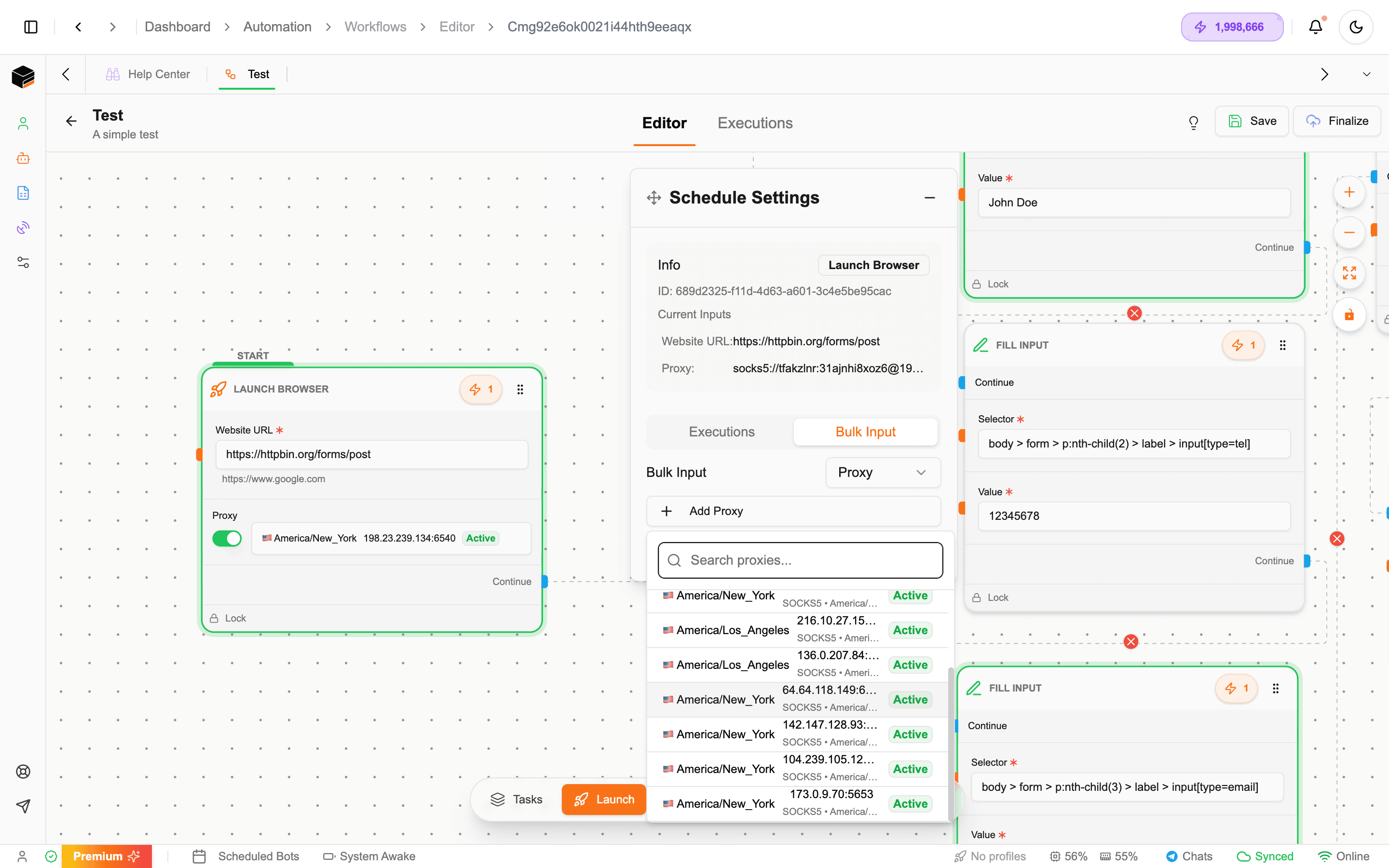
Proxy Rotation
Assign a unique proxy for each execution in the Launch Browser task settings:
If you’re using a rotating proxy service, the system automatically handles IP switching between executions.
Conditional Selectors
Change which UI elements the bot interacts with for specific executions:
- View Selectors option lets you see and modify CSS/XPath selectors in the spreadsheet editor
- Useful when buttons or fields differ between accounts or scenarios
- Allows fine-grained control over automation behavior per execution
Example: If Account A has a “Submit” button and Account B has a “Confirm” button, you can specify different selectors for each execution.
7. Testing Your Scheduled Bot
Before deploying to production, always test with a short interval:
Step 1: Set Test Schedule
Configure the bot to run every 10 seconds with a limit of 3-5 executions.
Step 2: Monitor Execution
Watch as the bot cycles through each execution:
- Peter Griffin’s order
- Jane Smith’s order
- Charles James’s order (with fallback values)
Step 3: Verify Results
Check that:
- All inputs are correctly applied
- Fallback values work as expected
- The bot handles missing data gracefully
- Execution order is correct
Step 4: Adjust and Deploy
Once testing is successful, update the schedule to your production interval and execution limit.
Pro Tip: Start with a 3-execution test run to catch issues early, then scale up to your full dataset.
8. Clearing and Resetting
To start fresh with your scheduler and dynamic inputs:
Step 1: Click Clear All
In the dynamic input section, click the Clear All button.
Step 2: Confirm
A prompt will appear—click Clear to confirm.
Step 3: Reset Complete
Both the scheduler and spreadsheet data are cleared. Your bot workflow remains intact and can be reconfigured.
This action cannot be undone. Make sure you’ve saved any important execution data before clearing.
9. Real-World Use Cases
Form Submissions
Automatically submit forms for multiple customers:
- Customer onboarding
- Registration processes
- Survey responses
- Order placements
Account Management
Manage multiple social media, e-commerce, or SaaS accounts:
- Post content across accounts
- Update profiles
- Check notifications
- Perform routine maintenance
Data Scraping & Delivery
Collect data and deliver it to various destinations:
- Scrape product prices and send to Telegram
- Monitor competitor websites and log to databases
- Extract news articles and post to internal dashboards
Continuous Monitoring
Keep workflows running 24/7 with customized checks:
- Stock availability monitoring
- Website uptime checks
- Price drop alerts
- Social media mentions
10. Best Practices
Credit Management
- Set execution limits to prevent runaway costs
- Use longer intervals for non-urgent tasks
- Monitor credit usage in your dashboard
Error Handling
- Test with fallback values to ensure resilience
- Configure error notifications
- Set up retry logic for failed executions
Performance Optimization
- Avoid intervals shorter than 10 seconds unless necessary
- Batch similar executions together
- Use conditional logic to skip unnecessary steps
Security
- Rotate proxies for scraping to avoid IP bans
- Use secure credential storage for multi-account automation
- Review logs regularly for suspicious activity
Troubleshooting
Bot Not Running on Schedule
- Check if the schedule is paused in Scheduled Bots
- Verify execution limit hasn’t been reached
- Ensure sufficient credits in your account
Inputs Not Changing
- Confirm values are saved in the spreadsheet
- Check that nodes are properly locked when reordering
- Verify green highlighting indicates successful changes
Missing Values
- Remember: missing values default to the workflow editor values
- Fill in critical fields to avoid fallback behavior
- Test thoroughly before scaling up executions
Selector Issues
- Use View Selectors to debug element targeting
- Update selectors if website layout has changed
- Consider using more robust CSS/XPath queries
Summary
With the Scheduler and Dynamic Inputs features, your Xenbox bots become incredibly powerful automation engines:
✅ Run bots automatically at custom intervals
✅ Execute workflows multiple times with unique inputs
✅ Manage hundreds of executions effortlessly
✅ Customize behavior per execution (accounts, proxies, selectors)
✅ Control costs with execution limits
✅ Pause, modify, or stop anytime
Ready to supercharge your automation? Start scheduling your first bot today!
Next Steps: