Automation Settings
Automation settings allow you to control how your workflows run—ranging from quick toggles in the Control Center to more advanced configurations in the settings panel.
Overview
Automation settings help you:
- Control browser visibility (headless vs UI)
- Manage system power behavior
- Configure execution performance
- Customize browser and automation behavior
- Optimize user experience and reliability
1. Quick Settings (Control Center)
You can access quick automation settings directly from the Control Center.
Step 1: Open Control Center
Locate your workflow and open the Control Center.
Step 2: Click the Gear Icon
Click the ⚙️ gear icon to open Automation Settings.
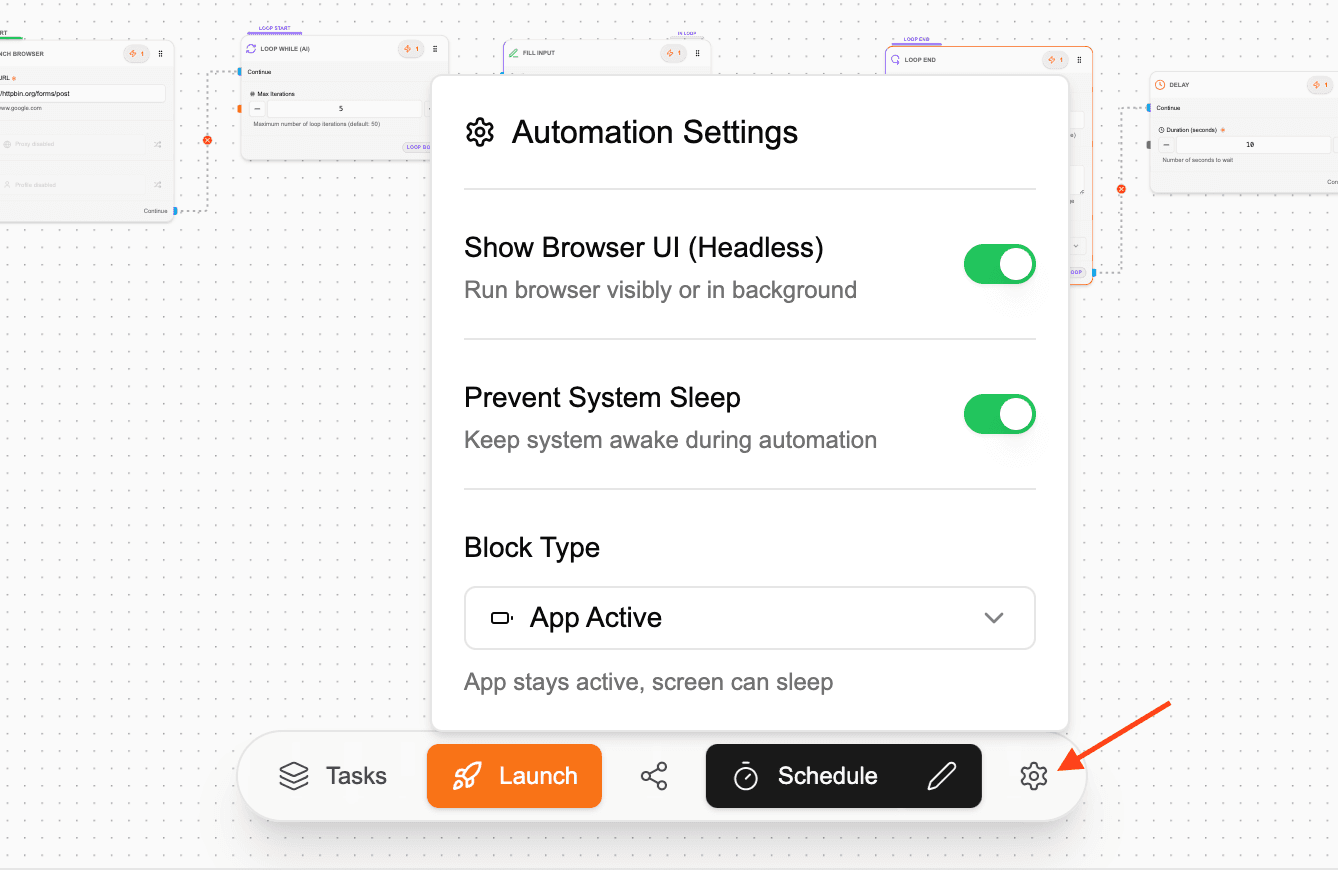
Available Quick Settings
Show Browser UI (Headless Mode)
- On → Browser is visible during automation
- Off → Runs in headless mode (no browser UI shown)
Use case:
- Turn ON for debugging
- Turn OFF for silent/background execution
Prevent System Sleep
- Keeps your system awake while automation runs
- Ensures workflows continue even if your screen turns off
Lock Type
Defines how the system stays active:
- Display Active
- Keeps the screen ON
- App Active
- Keeps the app running while allowing the screen to sleep
Use “App Active” if you want to save power while keeping automations running in the background.
2. Advanced Automation Settings
For more control, navigate to:
Sidebar → Settings → Automation Settings
This opens a full configuration panel with additional options.
3. Power Management
These settings control how your system behaves during automation:
- Prevent System Sleep – Keeps the entire system awake
- Prevent Display Sleep – Keeps the screen active
These mirror the quick settings but offer more explicit control.
4. Cross-Profile Extensions
This allows you to reuse browser extensions across profiles.
- When enabled:
- Extensions from a selected profile are loaded into other profiles during automation
- Useful for:
- Shared tools
- Authentication extensions
- Proxy or scraping extensions
5. Scheduled Jobs Behavior
Control how scheduled workflows behave when the app starts.
Auto Resume Enabled
- Scheduled jobs automatically resume when the app launches
- No manual intervention required
Auto Resume Disabled
- You are notified of active jobs
- You manually choose whether to resume them
It is recommended to keep auto-resume disabled to avoid unexpected or disruptive executions when launching the app.
6. Browser Settings
Headless Mode
- Enable or disable browser UI (same as quick setting)
Default Viewport
- Set a default browser window size for automation
- Useful for consistent rendering and element targeting
Advanced Browser Configuration
You can define custom Chrome launch arguments.
Step 1: Open Advanced Settings
Click Advanced Browser Settings
Step 2: Enable Custom Arguments
Turn on custom configuration
Step 3: Add Arguments
Examples:
--no-sandbox--disable-setuid-sandbox
Step 4: Save
Apply your configuration
Custom arguments are useful for debugging, compatibility, and running automations in restricted environments.
7. Screenshot Settings
Control how screenshots are captured during automation.
Image Format
- PNG (Recommended) – Higher quality
- JPEG – Smaller file size
Image Quality
- Adjustable using a slider
- Higher quality = clearer images but larger file sizes
8. Typing Speed
Control how fast the automation types into inputs.
-
Faster typing
- More efficient
- Less human-like
-
Slower typing
- More natural behavior
- Better for avoiding detection
Adjust typing speed based on your use case—slower speeds are preferable for human-like automation.
Best Practices
Debugging
- Enable Show Browser UI when testing workflows
- Use headless mode only after validation
Stability
- Use App Active lock mode for long-running tasks
- Avoid unnecessary system sleep interruptions
Scheduling
- Keep auto-resume disabled to maintain control
- Manually verify jobs before resuming
Performance
- Optimize screenshot quality based on need
- Use appropriate typing speeds for realism
Summary
Automation settings give you full control over how workflows execute:
✅ Toggle headless or visible browser execution
✅ Prevent system or display sleep
✅ Manage scheduled job behavior
✅ Configure browser and extensions
✅ Optimize screenshots and typing behavior
Next Steps: