Sharing & Managing Templates
Templates allow you to reuse and distribute workflows efficiently. You can share them privately, with specific users, or publicly—while ensuring sensitive data is always protected.
Overview
The template sharing system is designed to:
- Protect sensitive data automatically
- Allow flexible sharing options (private, shared, public)
- Enable fine-grained permissions for collaborators
- Make templates easy to reuse and distribute
Sensitive data such as passwords, API keys, and tokens are always removed automatically—regardless of your sharing settings.
1. Accessing the Share Feature
Step 1: Open the Control Center
Navigate to your workflow and locate the Control Center.
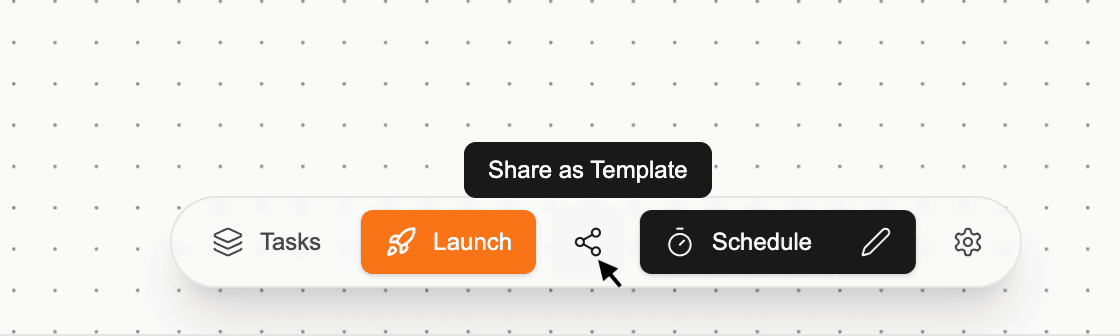
Step 2: Click Share
Click the Share button to begin the template sharing process.
2. Template Sanitization
Before sharing, you must decide how much data to include in your template.
Step 1: Choose Data Handling Option
The Template Sanitization Modal appears after clicking Share.
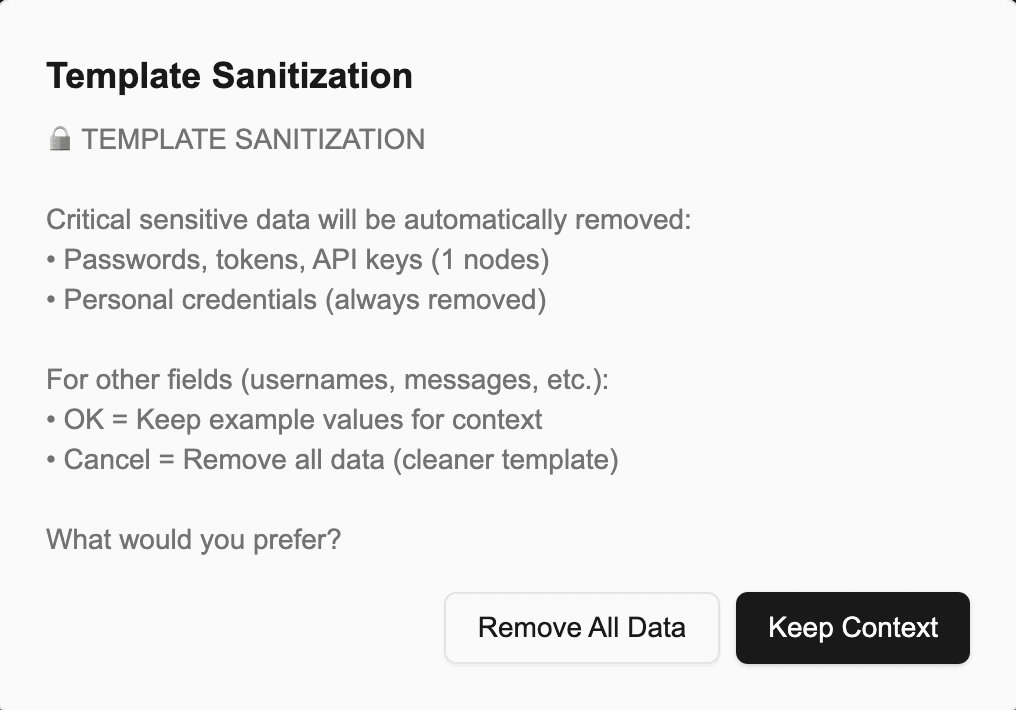
Step 2: Select an Option
You can choose between:
- Keep Value Context
- Retains selectors, usernames, and workflow data
- Remove All Data
- Removes selectors and all user-specific inputs
Step 3: Understand Automatic Protection
Regardless of your choice:
- Passwords
- Tokens
- API keys
- Personal credentials
are always removed automatically.
Even if you keep value context, sensitive credentials are never included in shared templates.
3. Creating a Template
After sanitization, you’ll define your template details.
Step 1: Fill Template Details
The Create Template Modal appears.
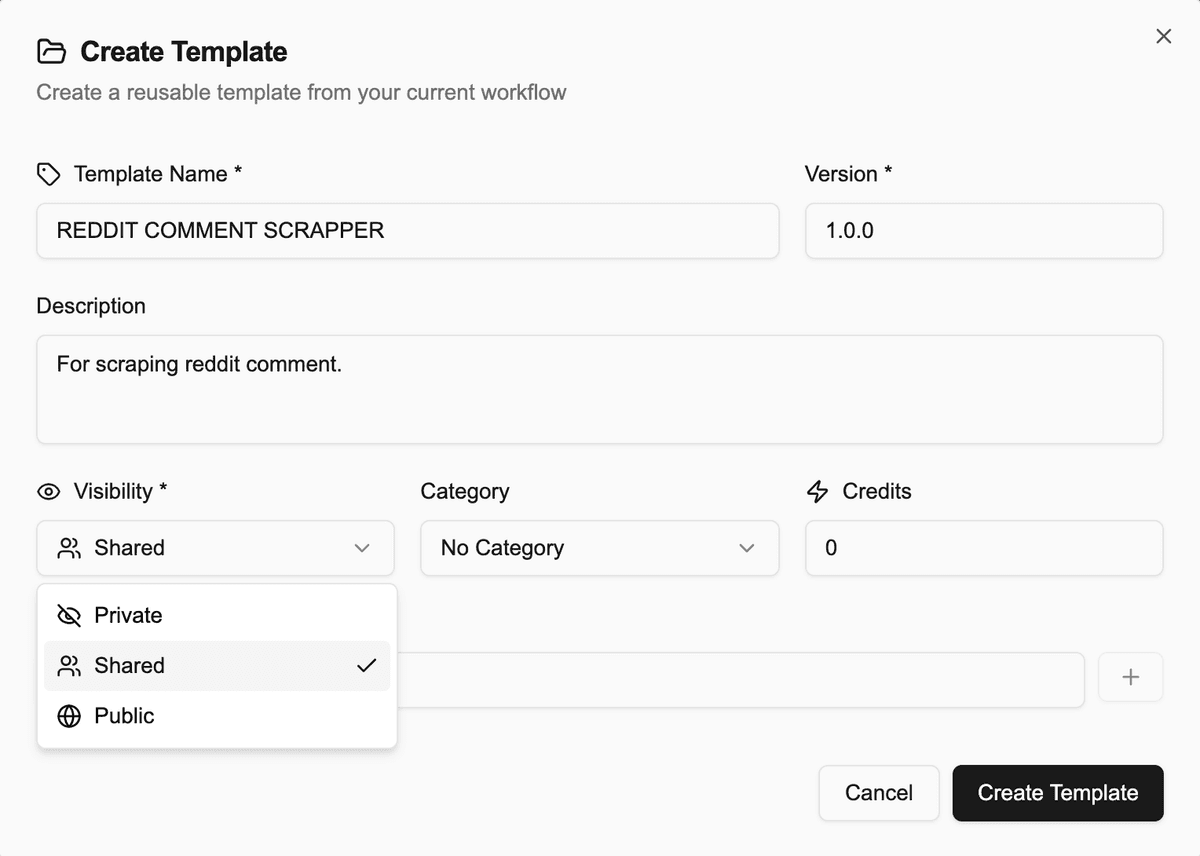
Step 2: Configure Template Settings
Provide the following:
- Name – Template title
- Version – Version identifier
- Description – What the template does
Step 3: Set Visibility
Choose how the template is shared:
- Private – Only you can access it
- Shared – Only selected users can access it
- Public – Available to all users
Step 4: Add Metadata
- Category – Organize templates
- Credits – Usage cost (if applicable)
- Tags – Improve discoverability
4. Managing Templates
Once created, templates can be managed from the sidebar.
Accessing Your Templates
- Navigate to Automation Templates
- Click My Templates
- Select any template to view or edit
This section acts as your central hub for all created templates.
5. Sharing with Specific Users
You can restrict access to selected users using email-based sharing.
Step 1: Open Share Settings
Open a template and choose to share it.
Step 2: Add Users
Enter the user’s email address.
Step 3: Assign Permissions
Choose what the user can do with the template.
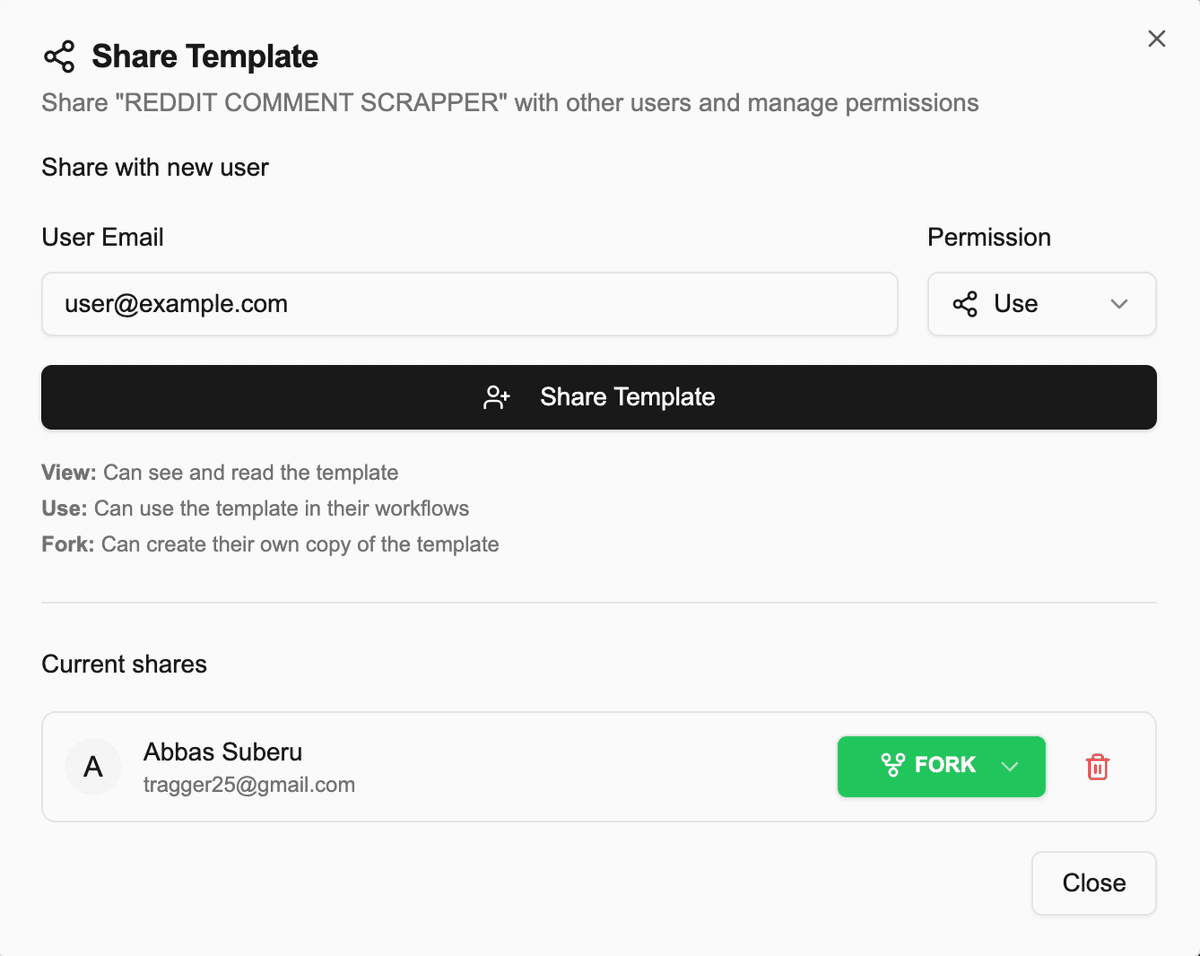
Permission Levels
View
- User can only see and read the template
- No execution or duplication allowed
Use
- User can run the template in workflows
- Cannot modify the original
Fork
- User can duplicate the template
- Can modify and create their own version
6. Accessing Shared Templates
When a template is shared with a user:
- It appears under Shared Templates in their dashboard
- Access level depends on assigned permissions
- Users can interact based on View, Use, or Fork rights
7. Best Practices
Data Safety
- Always review what data you are sharing
- Use Remove All Data when distributing publicly
Permission Control
- Use View for sensitive templates
- Use Fork for collaboration and customization
Organization
- Add clear names, descriptions, and tags
- Use categories for better structure
Versioning
- Update template versions when making improvements
- Keep older versions for stability if needed
Summary
The template system provides a structured and secure way to share automation workflows:
✅ Control what data is included
✅ Automatically remove sensitive credentials
✅ Share privately, selectively, or publicly
✅ Assign granular permissions (View, Use, Fork)
✅ Manage templates from a central dashboard
Next Steps: