Basic Editing & Task Connections
The workflow editor allows you to visually build automations by dragging tasks, selecting elements from web pages, and connecting nodes together to define execution flow.
Overview
In this guide, you’ll learn how to:
- Drag and drop tasks into the canvas
- Extract and use selectors
- Configure task inputs
- Connect tasks correctly
- Understand connection types (data vs control flow)
- Work with more advanced logic flows
1. Adding Tasks to the Canvas
Step 1: Open the Editor
Navigate to the editor page from the Control Center.
Step 2: Drag and Drop Tasks
From the task panel, drag a task (node) into the canvas.
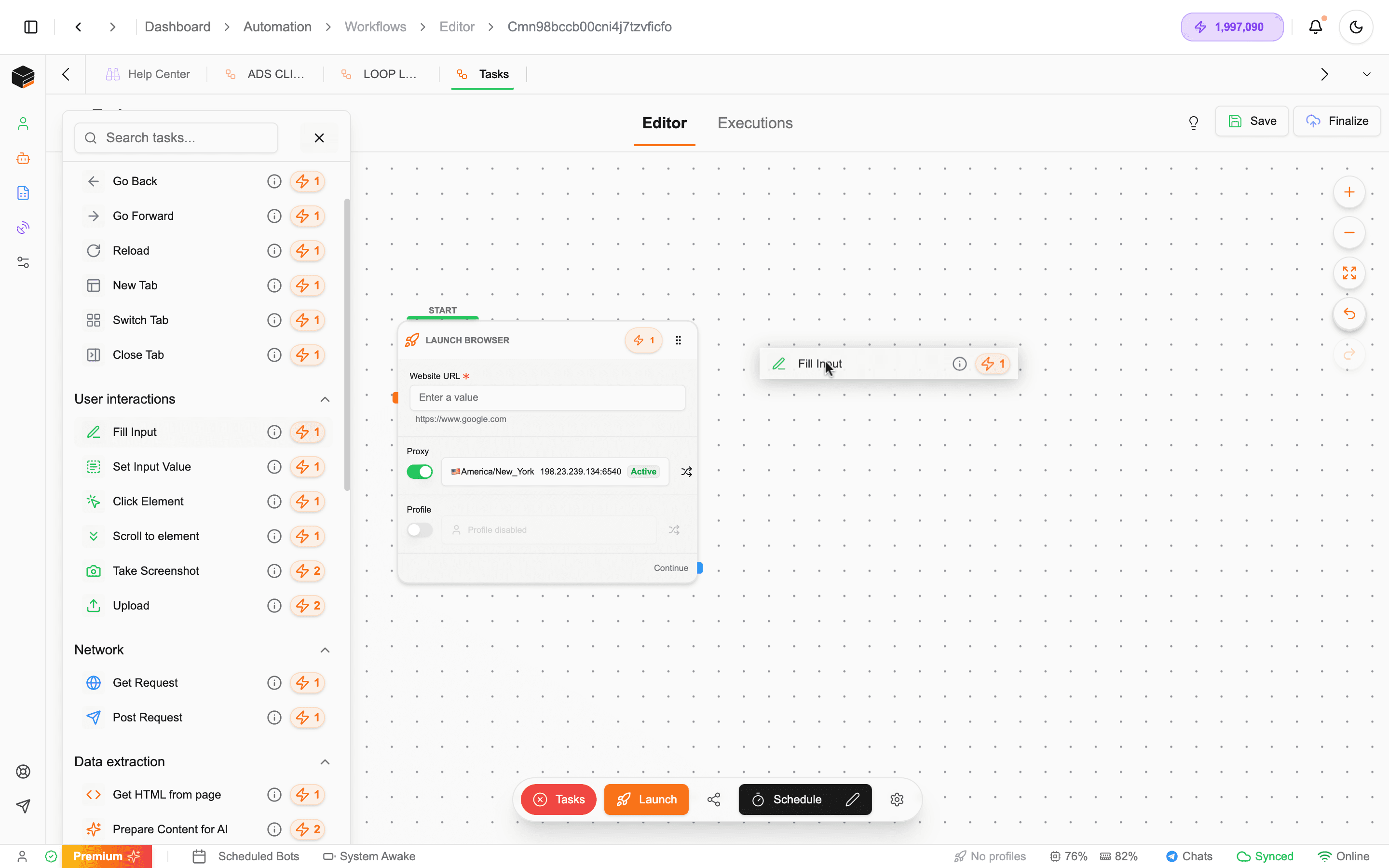
By default, most workflows start with a Launch Browser task depending on the workflow type.
Each task represents a step in your automation. You build workflows by chaining tasks together.
2. Selecting Elements (Getting Selectors)
For tasks like Click or Fill Input, you must specify which element the browser should interact with.
Step 1: Open Target Website
Run or preview your workflow to open the browser.
Step 2: Inspect the Element
Right-click the element (input, button, etc.) and click Inspect.
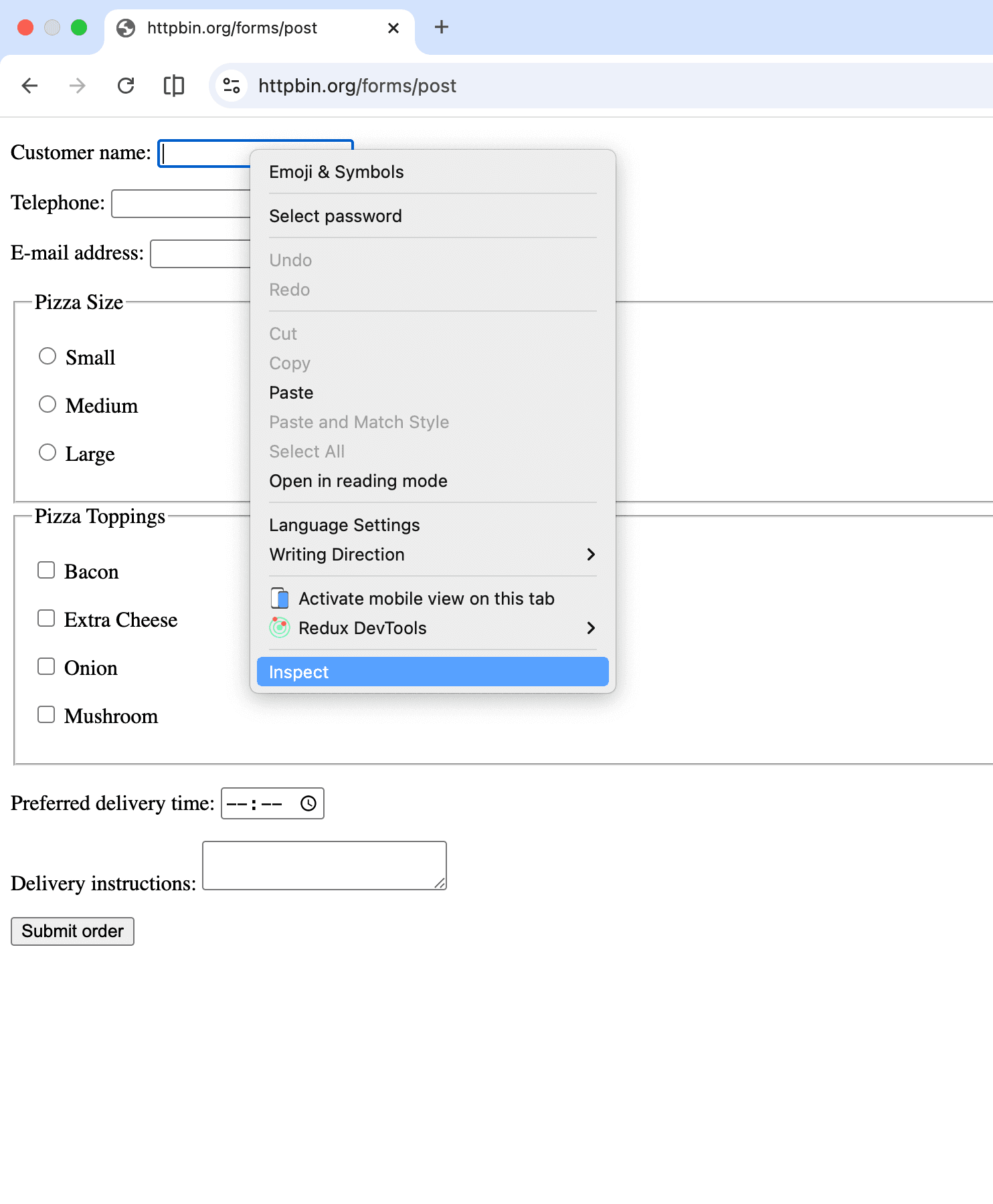
Step 3: Copy Selector
In the developer tools:
- Right-click the highlighted element
- Click Copy → Copy Selector
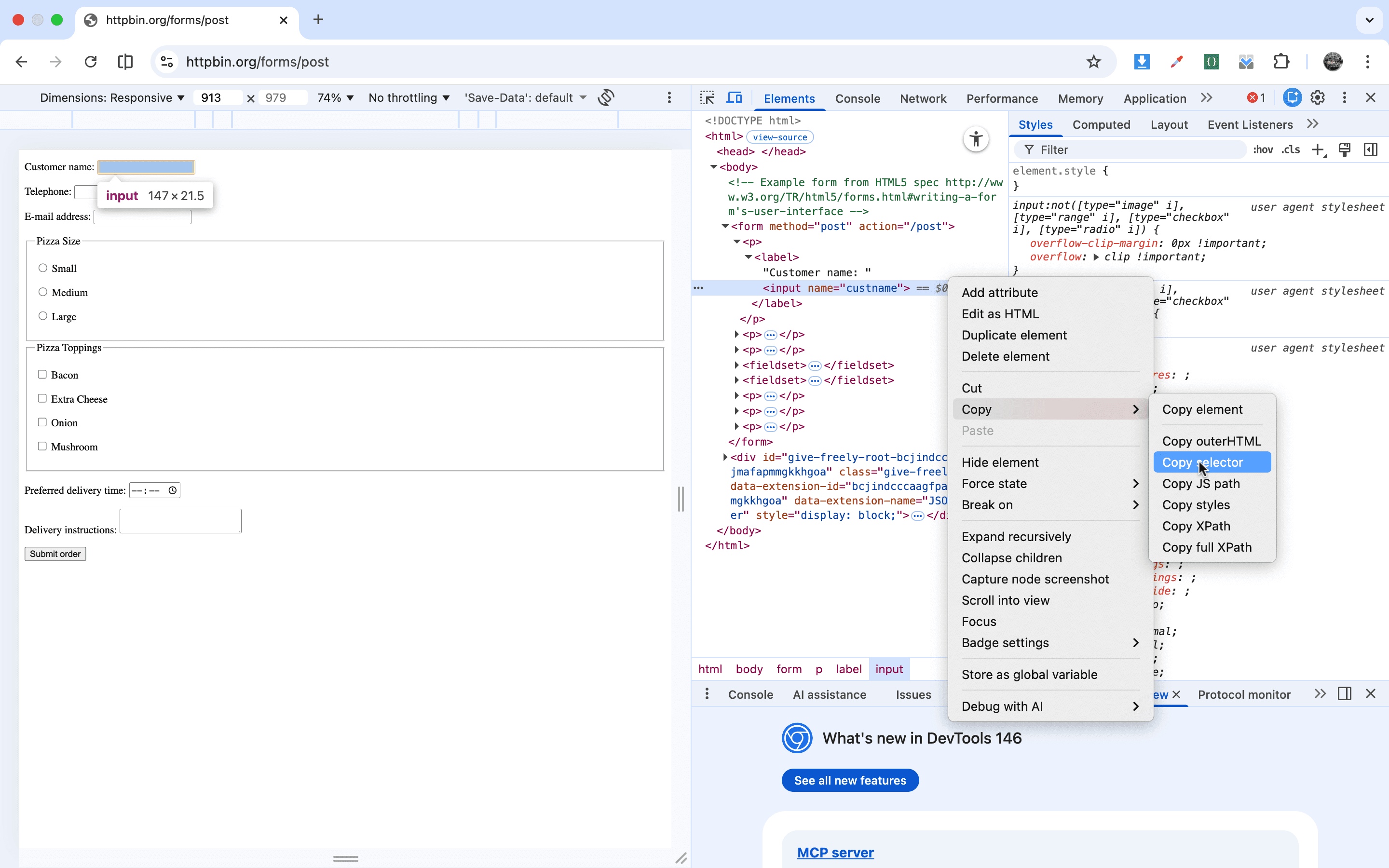
Step 4: Paste into Task
Paste the selector into the Selector field of your task.
Fields marked with an asterisk (*) are required. Missing selectors will cause the workflow to fail.
3. Configuring Task Inputs
After adding a selector:
- Provide the value (e.g., text to type into an input)
- Ensure all required fields are filled
Example:
- Selector → input field
- Value → text to type
4. Connecting Tasks
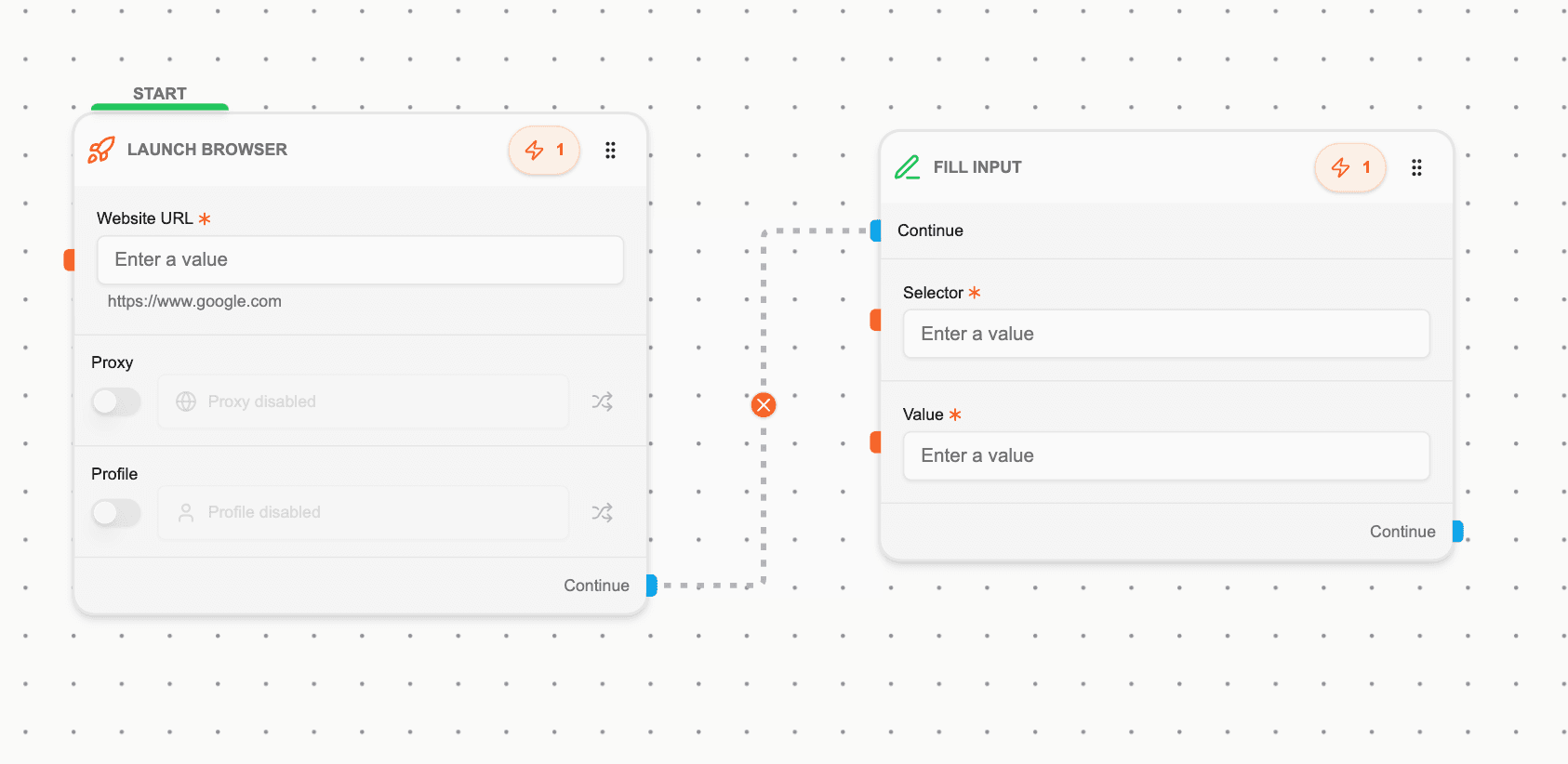
Once tasks are added and configured, you need to connect them to define execution flow.
Step 1: Connect Nodes
Drag from one node’s output handle to another node’s input handle.
Step 2: Define Execution Order
Connections determine the order:
- Launch Browser → Fill Input
- Fill Input → Click Button
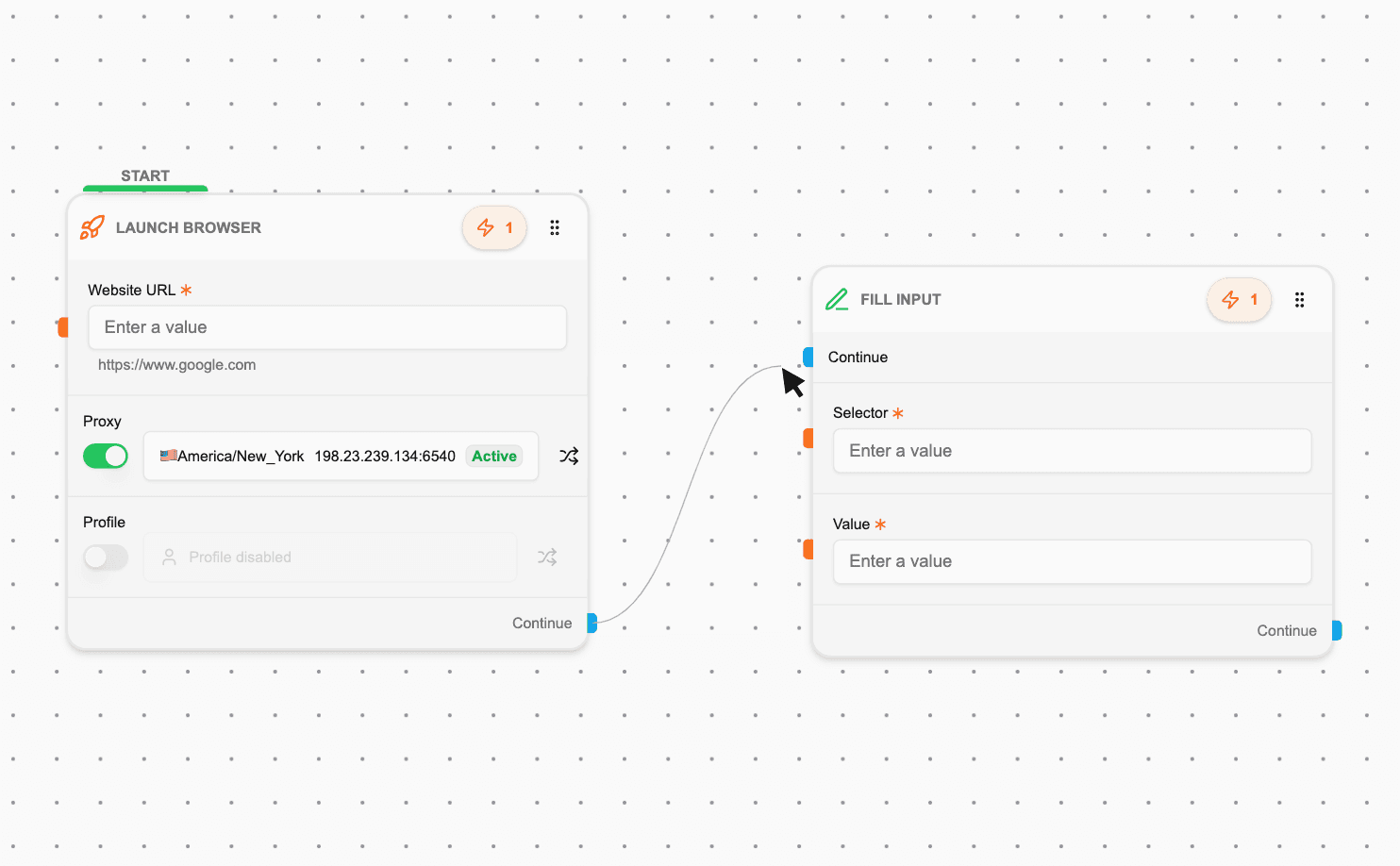
Step 3: View Connected Flow
A successful connection creates a visible edge between tasks.
5. Disconnecting Tasks
To remove a connection:
- Click the edge (line) between two nodes
- Use the cancel/remove button on the connection
This allows you to quickly adjust workflow logic.
6. Connection Types
Not all connections behave the same. Xenbox uses color-coded connections:
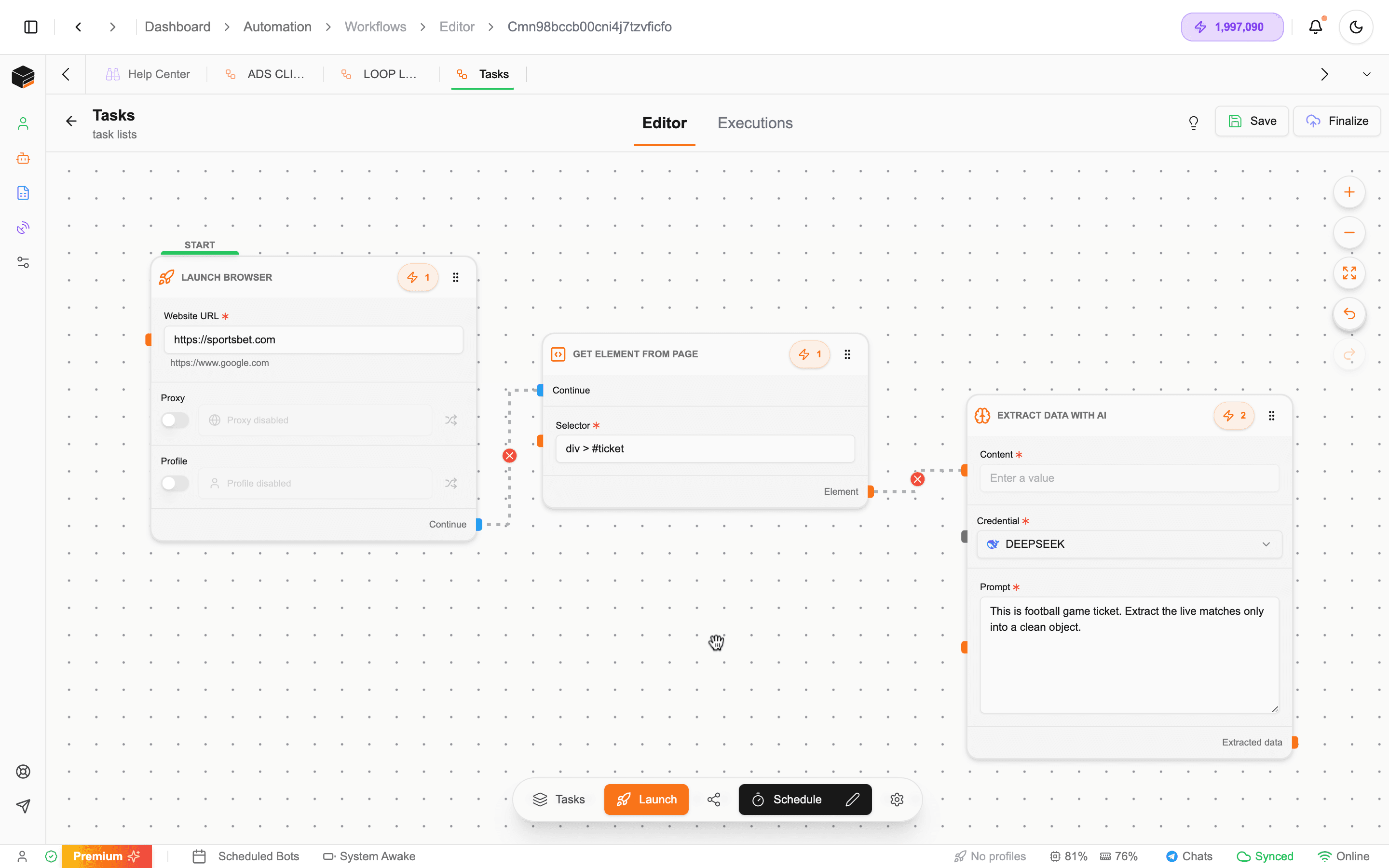
Blue Connections (Control Flow)
- Connect blue → blue
- Used to continue execution
- Does not pass data
Example:
- Launch Browser → Get Element
Orange Connections (Data Flow)
- Connect orange → orange
- Pass data between tasks
Example:
- Get Element → Extract Data with AI
Here, the extracted element is passed into the AI task.
Use blue connections for sequencing tasks and orange connections when data needs to be transferred between nodes.
7. Advanced Connections
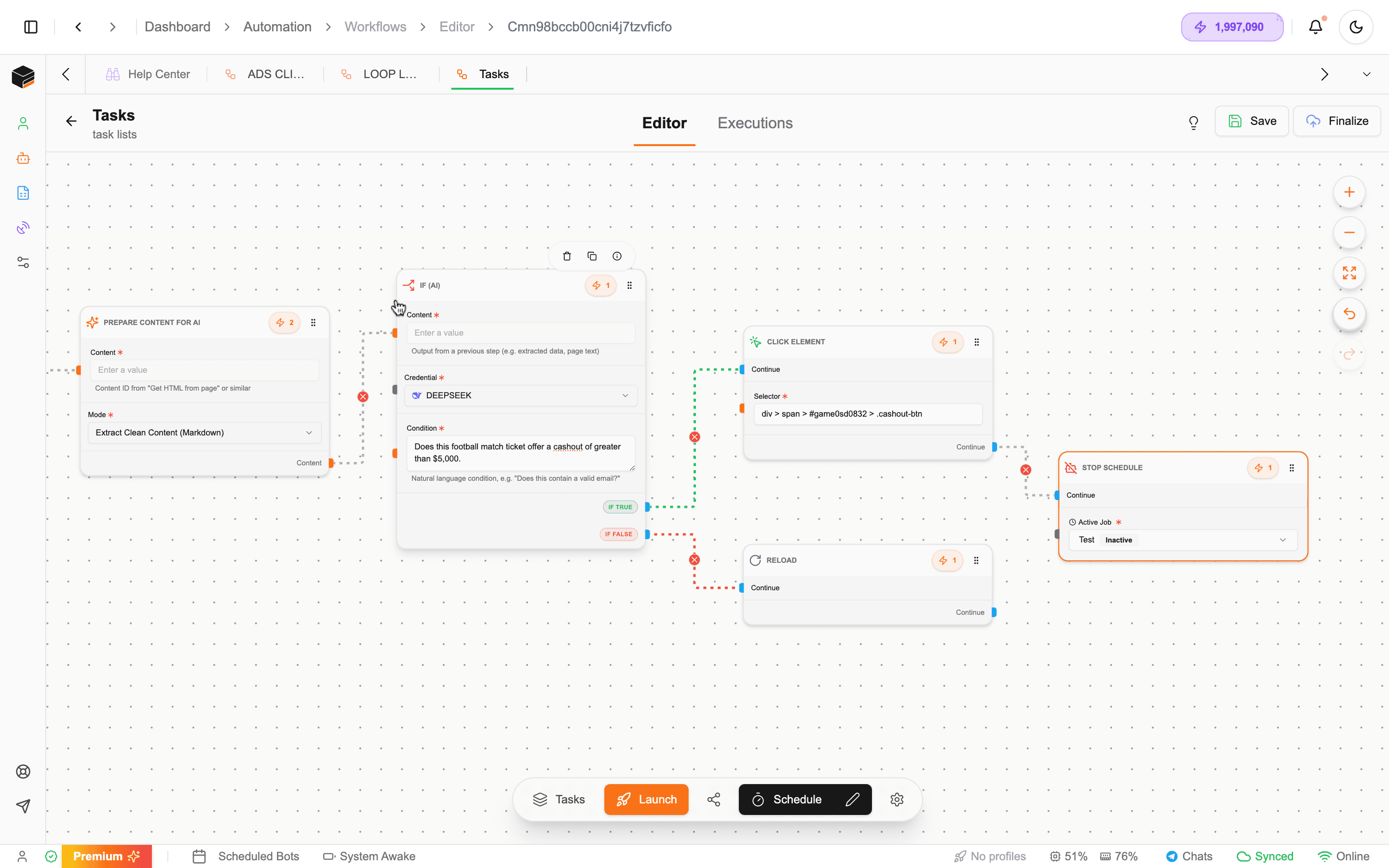
More complex workflows introduce conditional and multi-path logic.
Example Flow
- Get Content from Page
- Prepare Content for AI (clean and structure data)
- If AI Condition evaluates the result
Conditional Paths
-
True Path
- Click a button
- Stop a scheduled workflow
-
False Path
- Reload the page
- Retry logic
Some advanced nodes use additional connection types (e.g., conditional branches) to control logic flow.
Best Practices
Task Setup
- Always confirm required fields (*) are filled
- Validate selectors before running workflows
Connections
- Use blue for flow control
- Use orange when passing data
Debugging
- Disconnect and reconnect nodes to fix logic issues
- Test workflows step-by-step
Maintainability
- Keep workflows clean and readable
- Avoid unnecessary connections
Summary
The editor allows you to visually construct powerful automations:
✅ Drag and drop tasks into the canvas
✅ Extract and use selectors from web pages
✅ Configure task inputs and required fields
✅ Connect tasks using control and data flows
✅ Build advanced logic with conditional branching
Next Steps: